Conditional logic lets your form react to what a visitor types. You can reveal an extra field only when it’s relevant, or hide one that doesn’t apply — keeping the form short and tidy while still gathering the detail you need. For example: only show a “Which product?” field once the visitor has told you they’re a returning customer.
How a rule is built
Each rule reads like a sentence:
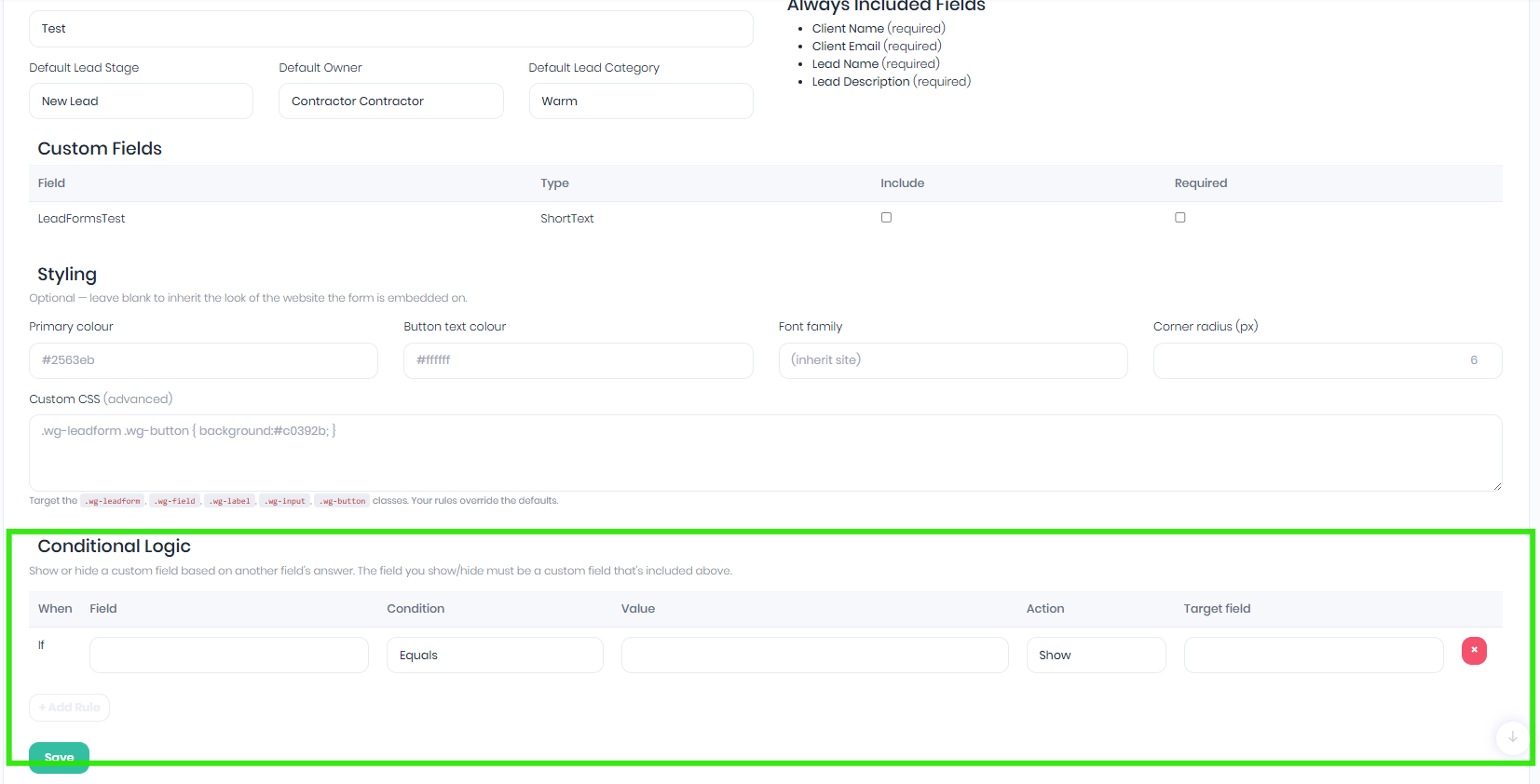
If [a field] [meets a condition] [value], then Show / Hide [a custom field].
To add one, scroll to the Conditional Logic section on the form’s edit screen and click + Add Rule. You’ll get a row with these parts:
| Part | What to choose |
|---|---|
| Field (the trigger) | The field whose answer you’re watching. This can be any field — one of the four standard fields or any custom field. |
| Condition | How to test the answer (see the conditions below). |
| Value | The text you’re testing against. (Not needed for the “Is answered” condition — the box disappears when you choose it.) |
| Action | Show or Hide the target field when the condition is met. |
| Target field | The field to show or hide. This must be a custom field that you’ve included on the form. |
The available conditions
| Condition | Meaning |
|---|---|
| Equals | The answer exactly matches the value you entered. |
| NotEquals | The answer is anything other than the value you entered. |
| IsAnswered | The visitor has typed something in the field (any value). No comparison value needed. |
| Contains | The answer includes the text you entered somewhere within it. |
Conditions ignore capital letters, so “Yes”, “yes” and “YES” are all treated the same.
Show vs Hide — how they behave
- Show — the target field starts hidden and only appears once the condition is met. Use this to reveal an extra field when it becomes relevant.
- Hide — the target field starts visible and disappears once the condition is met. Use this to remove a field that no longer applies.
Fields update instantly as the visitor types or makes a choice — there’s no need to reload the page. If a field is hidden at the moment the visitor submits, its answer is not sent and it won’t block submission even if it was marked required.
A worked example
Say you have a custom field called Preferred callback time and you only want to ask for it when the visitor has entered a phone number in a custom Phone field:
- If field = Phone
- condition = Is answered
- Action = Show
- Target field = Preferred callback time
Now “Preferred callback time” stays out of sight until the visitor fills in their phone number.
Was this article helpful?
That’s Great!
Thank you for your feedback
Sorry! We couldn't be helpful
Thank you for your feedback
Feedback sent
We appreciate your effort and will try to fix the article