Suppliers don't need a WorkGuru account to respond. Each one gets an email with a private link to a page where they enter their prices. This article walks through that page, so you can answer supplier questions, or send it to a supplier who's unsure what to do.
RFQ Invitation Email
The email comes from your business name with the subject RFQ from {your business}: {title}. It shows the RFQ title, how many items and attachments there are, your description, the closing date and a preview of the lines, with a Review the RFQ & Submit Your Quote button.
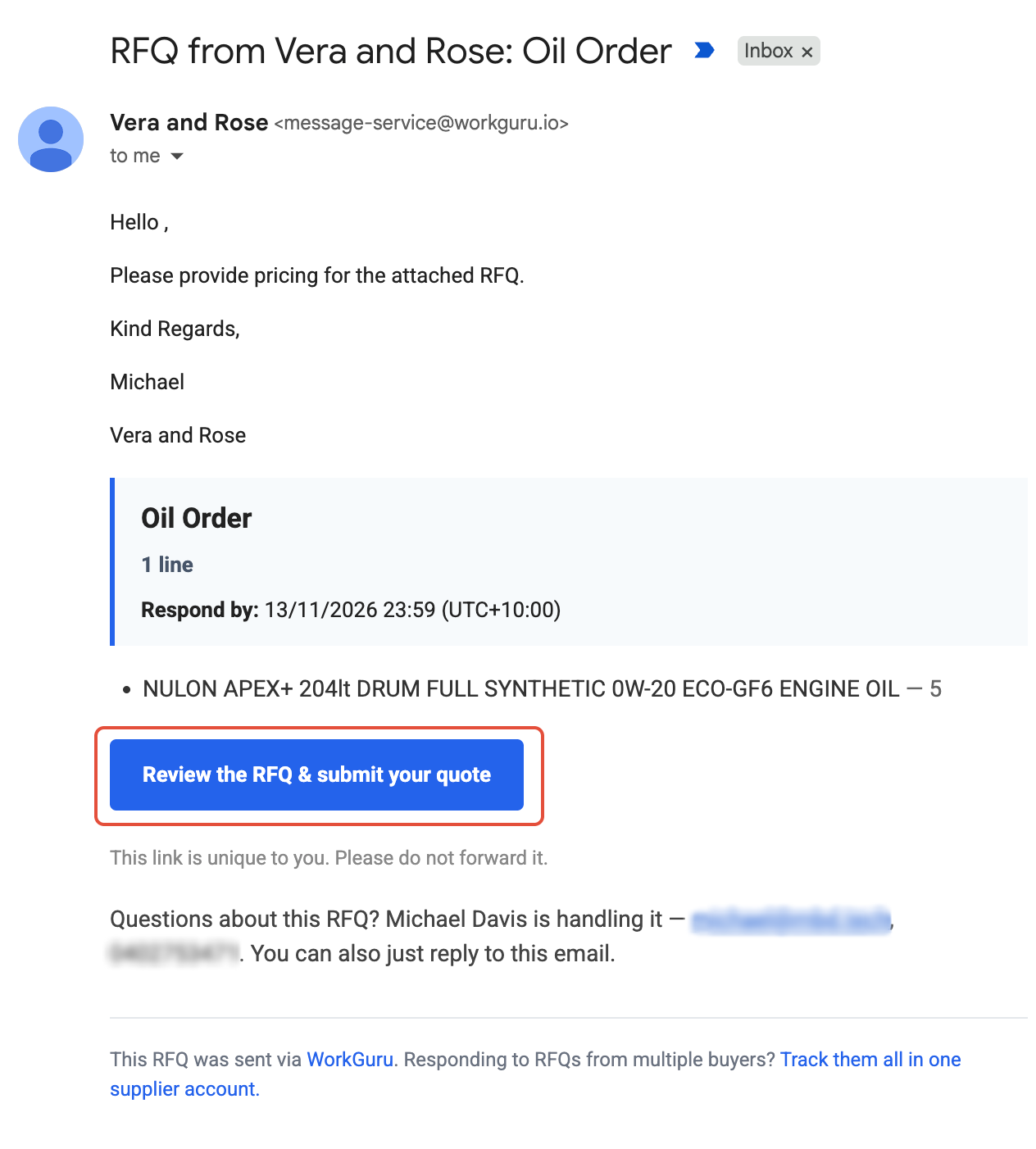
Note: The link is unique to that supplier and shouldn't be forwarded.
Responding to RFQs
Open the RFQ to review by clicking Review the RFQ & Submit Your Quote from the invitation email. The RFQ will open where the supplier can review the RFQ details.
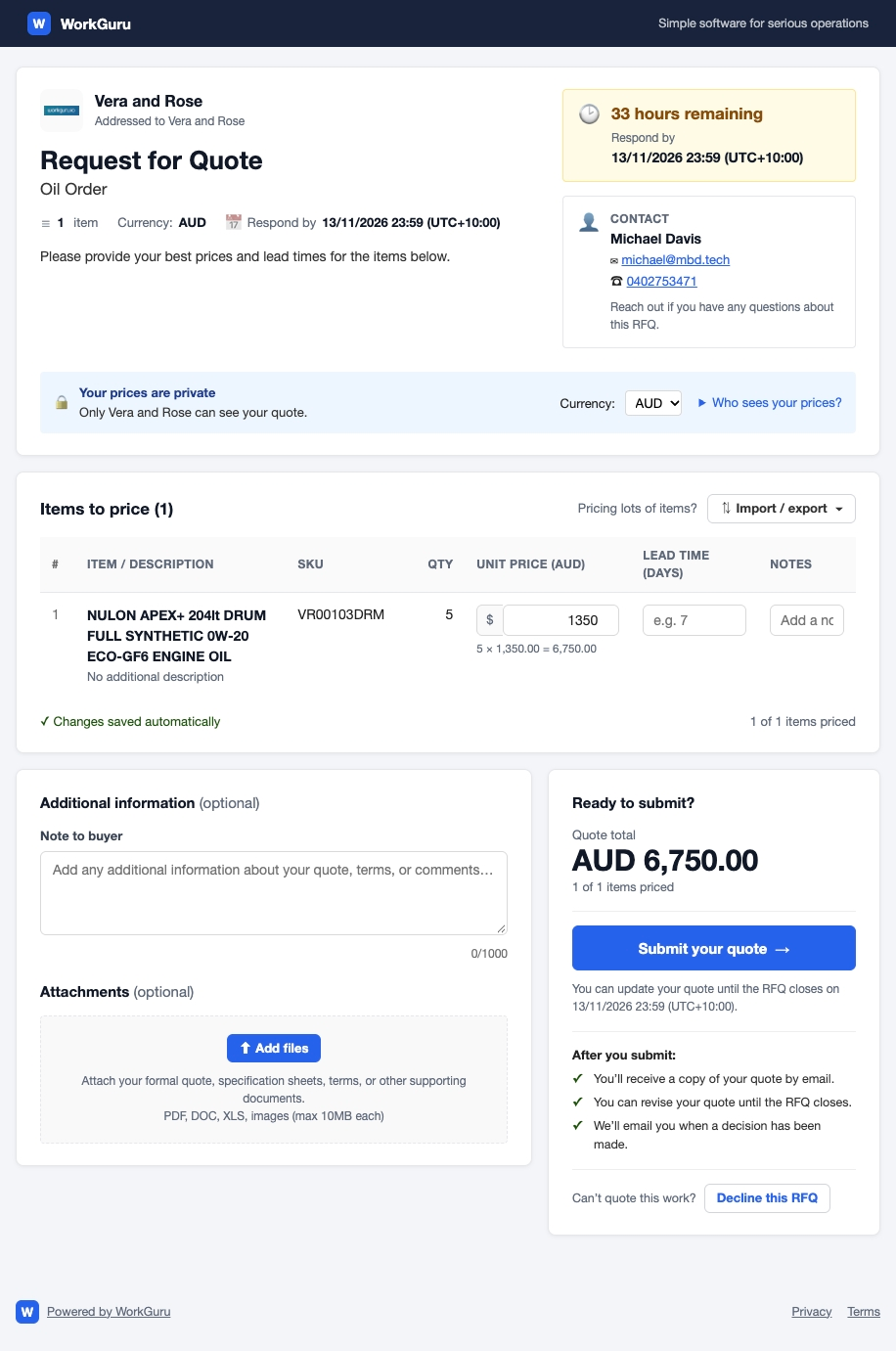
If the supplier decides to quote the RFQ, they simply need to
Enter Prices
Check the items under Items to price, and download any files under Drawings & specifications.
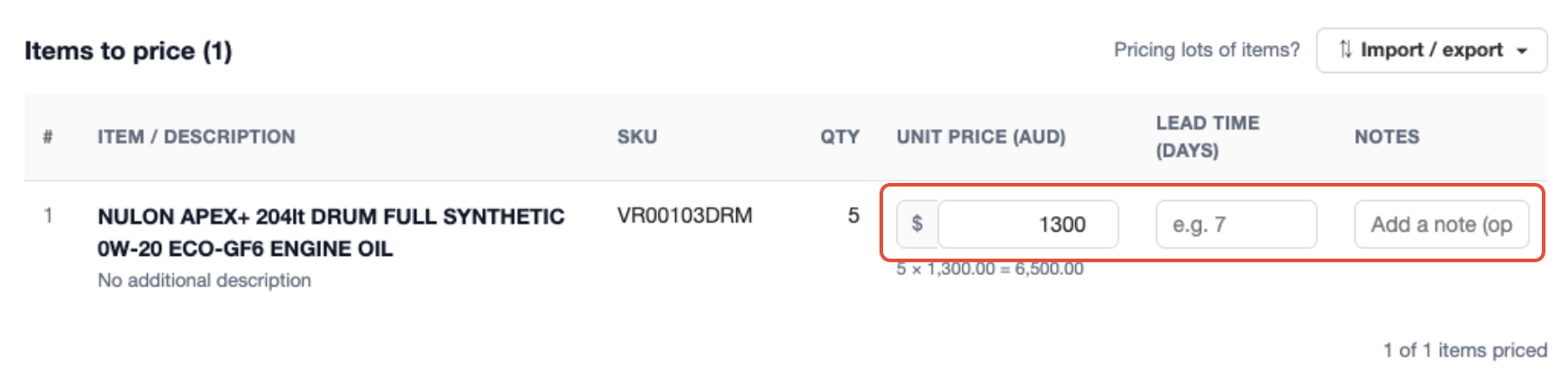
For each item, enter:
- Unit Price - Enter the price you want to quote
- Lead time (days) (Optional) - Enter the lead time to fulfil the order if successful.
- Notes (Optional) - Add a note to the requester.
Each row shows the line total as you type. Prices are saved in the supplier's browser as they type, so nothing is lost if they leave and come back. Nothing is sent to you until they submit.
You can also price many items from a spreadsheet. Under Pricing lots of items?, click Import / export and select Download these items as CSV.
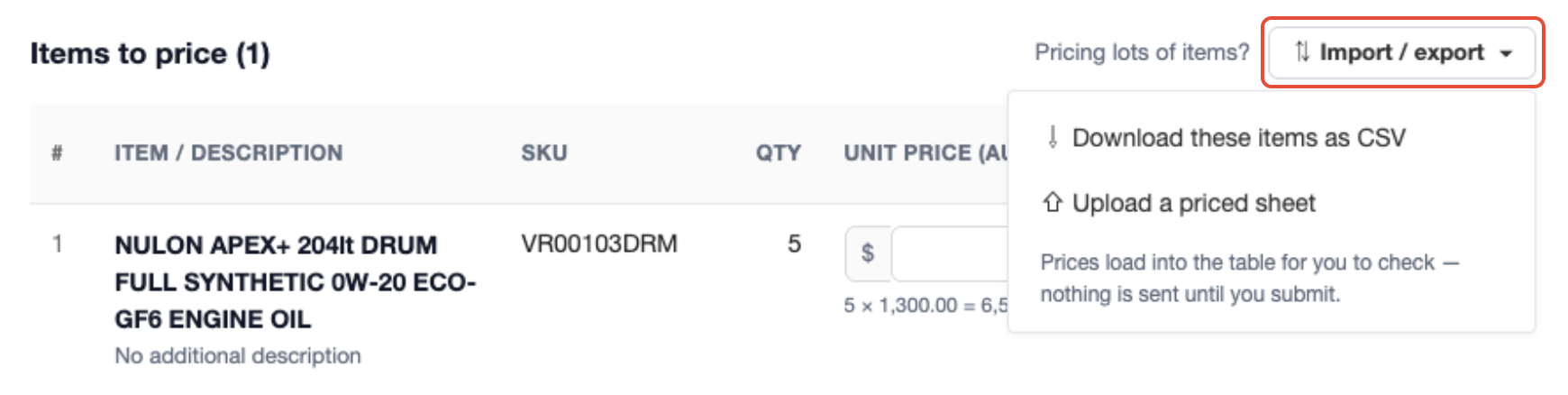
Fill in the Unit Price, Lead Time (Days) and Notes columns. Leave the Ref column as it is: it's how each row is matched back to its item.

Click Import / export and select Upload a priced sheet, and choose the file. Check the prices that load into the table, then submit.
Add Additional Information
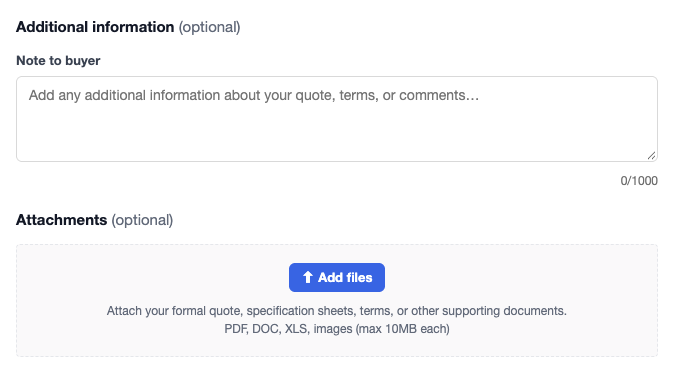
The supplier can add optional information to support their response. Add notes in the Note to the Buyer field. Under Attachments, click Add Files to upload files such as a specifications, documents or schematics.
Submit the Response
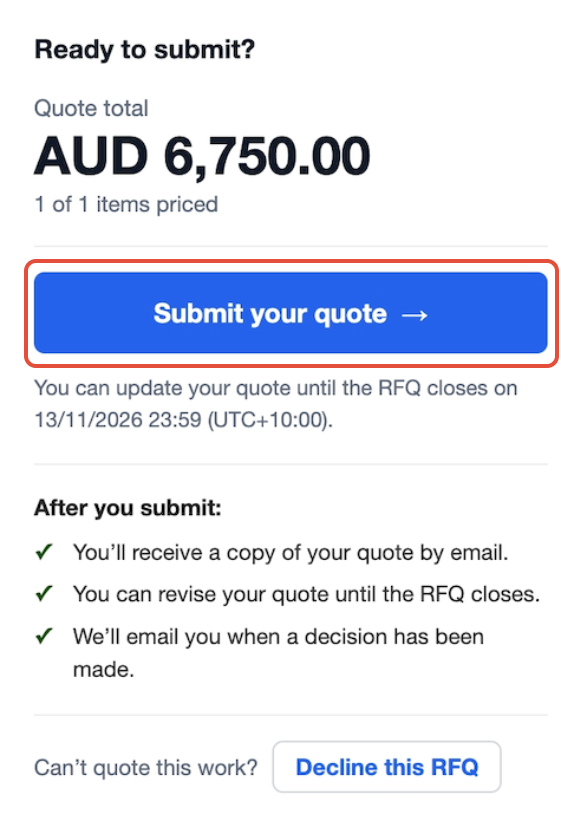
When you are ready to send the response, click Submit Your Quote you wil be emailed a confirmation and notified if the quote is successful or not.
Update, Decline or Withdraw
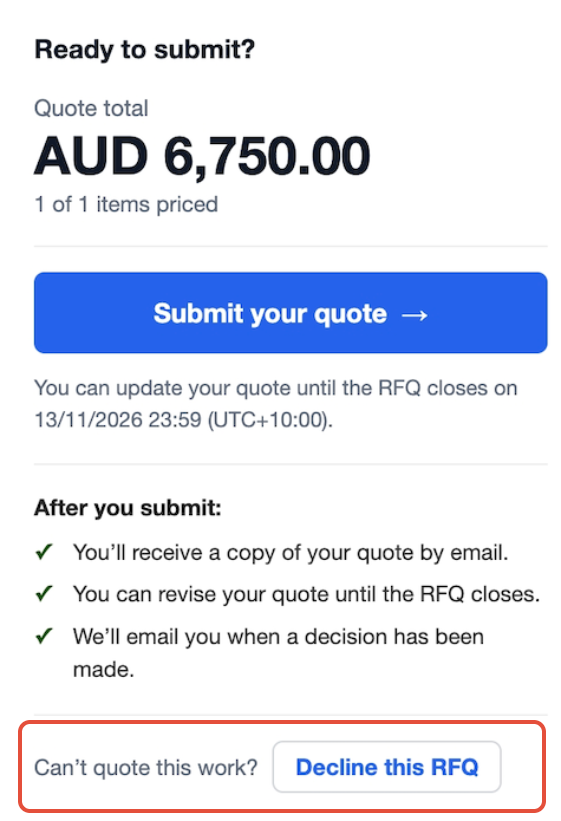
A supplier can change their prices and submit again as often as they like until the RFQ closes. Each submission replaces the last. If the supplier has already responded, the Submit Your Quote button will change to Update Your Quote. If they can't quote, they click Decline this RFQ and can pick a reason, such as Too busy to take this on right now or Can't meet the date required.
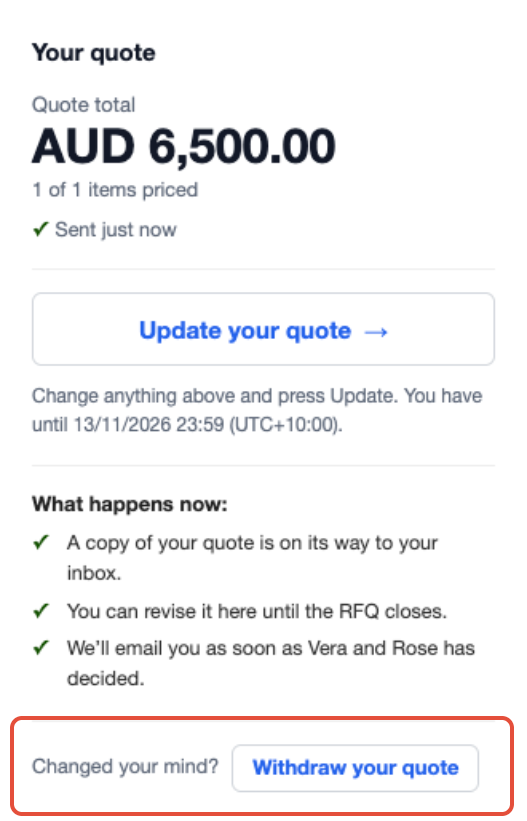
After submitting, Withdraw your quote declines it again. Declining removes their prices. They can still quote later, before the RFQ closes.
RFQ Notifications
The supplier will receive the following notifications by email from the RFQ process:
- They submit or decline - A confirmation email, with a link to update or withdraw.
- Before closing, if they haven't responded - Reminders 3 days, 1 day and 2 hours before
- You award the RFQ - If they quoted: an email saying whether they won.
- You cancel the RFQ - If they quoted: an email saying it closed without an award.
Suppliers who declined or never responded aren't emailed when you award or cancel.
Notes:
- Suppliers can quote some items and leave others blank.
- Only you see a supplier's prices. Other suppliers never see them.
- If you've set up other currencies, suppliers can choose which of your currencies to quote in.
- Attachments can be added once the quote is submitted: up to 10MB each, 20 files and 25MB in total.
- If the link says This RFQ link isn't valid, the RFQ may have been cancelled, or the link mistyped. Resend it from the Invitees panel.
Was this article helpful?
That’s Great!
Thank you for your feedback
Sorry! We couldn't be helpful
Thank you for your feedback
Feedback sent
We appreciate your effort and will try to fix the article