An RFQ is a list of items you want priced, sent to the suppliers you choose, with a date by which they need to respond. You can save it as a draft and send it when it's ready. You can also create an RFQ by using a RFQ Template.
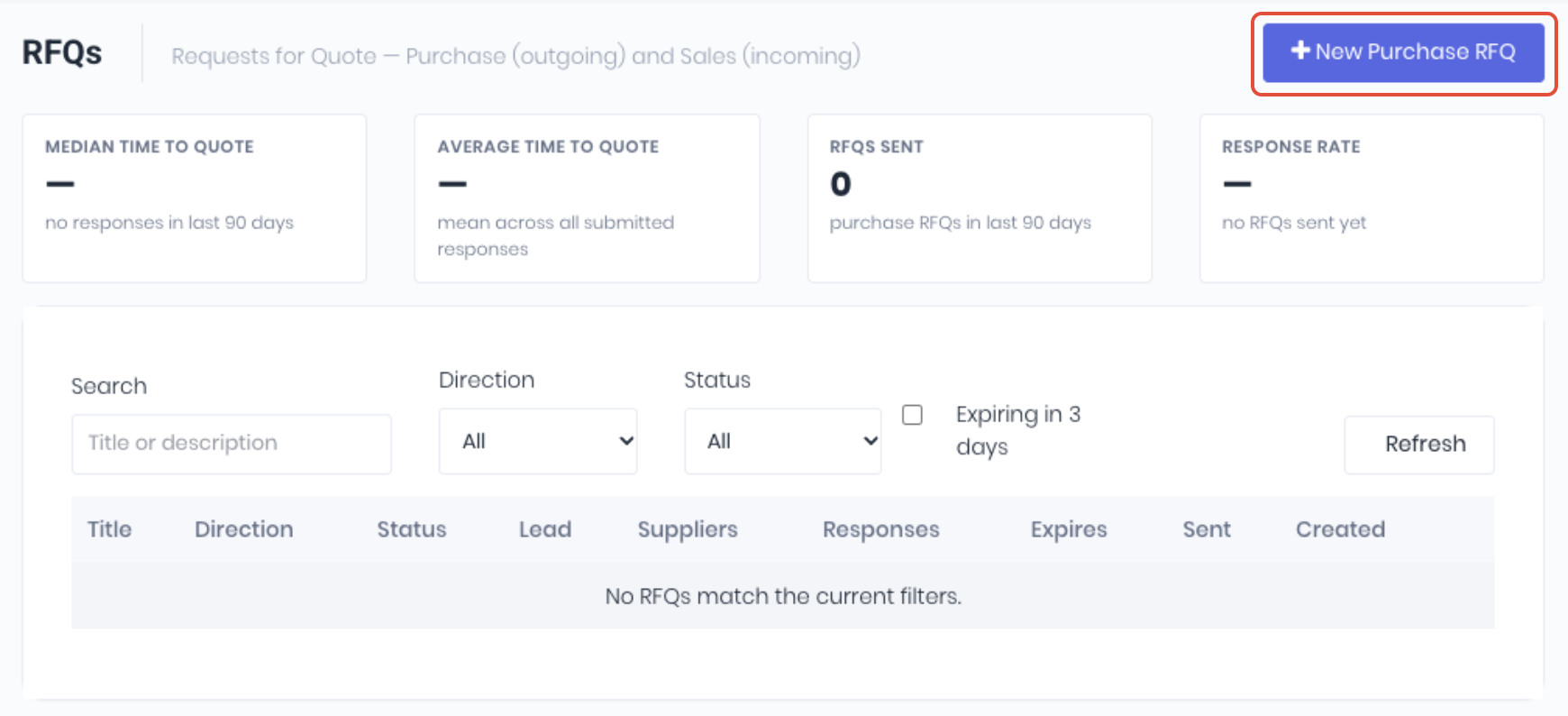
To raise an RFQ for a job you're quoting, from the RFQ dashboard click New Purchase RFQ or directly via RFQs -> New RFQ.
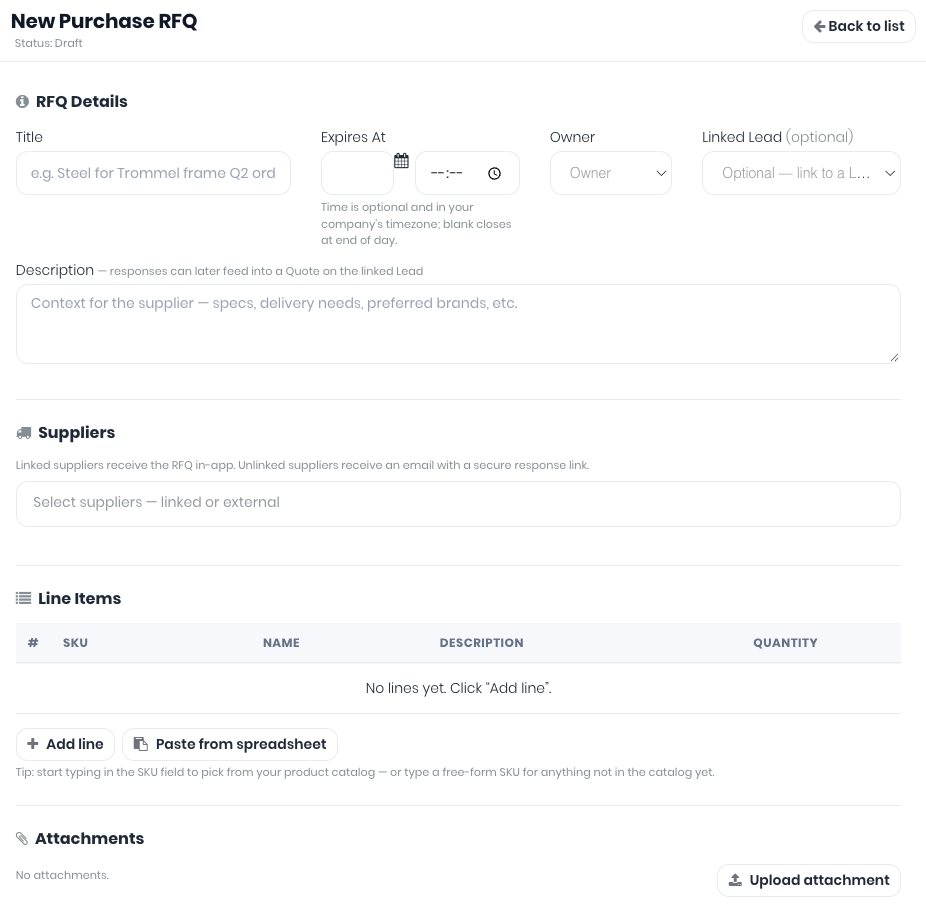
Fill in the new purchase RFQ details
RFQ Details
Enter basic RFQ details.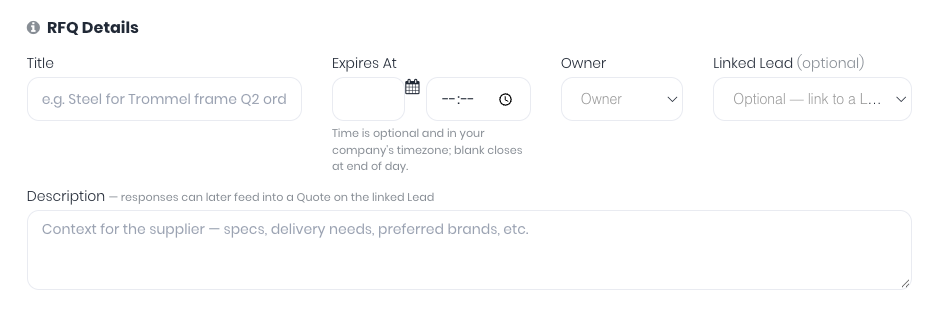
- TItle - Enter a title to identify the RFQ.
- Expires At - Pick the date suppliers must respond by. Optional: enter a closing time beside it. With no time, the RFQ closes at the end of that day in your company's timezone.
- Owner (Optional) - Choose an owner. If you leave it, you become the owner. The owner is notified when suppliers respond, and is the contact named in supplier emails.
- Linked Lead (Optional) - Choose a lead. You'll build the quote for that Lead from this RFQ
- Description (Optional) - Add a description, such as specifications, delivery needs, preferred brands. Suppliers see it at the top of the RFQ.
Suppliers
Add one or more suppliers to send the RFQ to.

- Select Suppliers - Search for and pick each supplier. Each one shows linked (they'll get it in WorkGuru), their email address, or no email on file.
Line Items
Each line is one item you want priced: a SKU, a name, an optional description and a quantity. You can pick items from your product catalogue, type them in, or paste a whole list from a spreadsheet. RFQs and RFQ templates use the same line editor.
Add Individual Lines
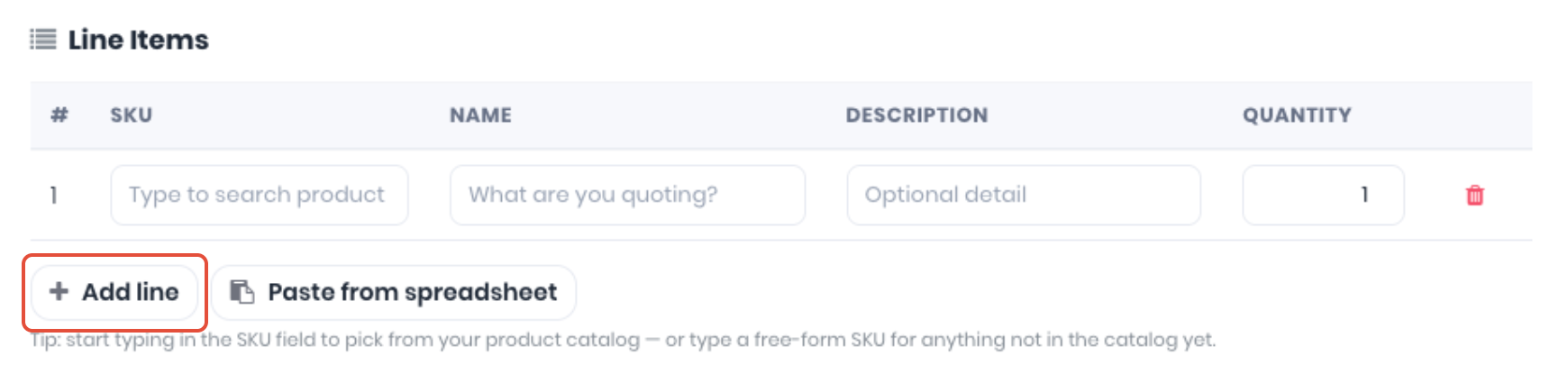
Click Add Line and start typing in SKU. Matching products from your catalogue appear; pick one to fill in its SKU, Name and Description. Update the Quantity for the amount required. For anything not in your catalogue, type a SKU of your own. Enter or check the Name and Description. To remove a line, click the Bin icon at the end of its row.
Add Multiple Lines
Copy a range from Excel / Google Sheets and paste below. Columns can be in any order if you include a header row (e.g. SKU Name Qty Unit). Without a header, the order is SKU, Name, Quantity, Unit, Description. Tabs or commas both work.
Import Column | Headings it Recognises |
|---|---|
SKU | SKU, Code, Part, Part No, Part Number |
Name | Name, Item, Item Name |
Description | Description, Desc |
Quantity | Qty, Quantity, Count |
Unit | Unit, UOM, Unit of Measure |
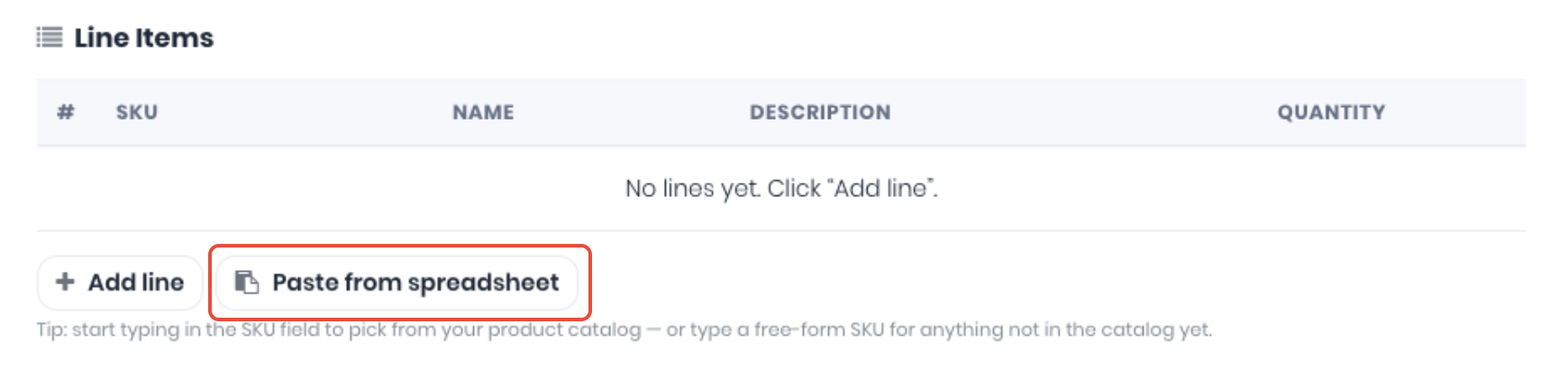
Click Paste from Spreadsheet and paste the data into the box.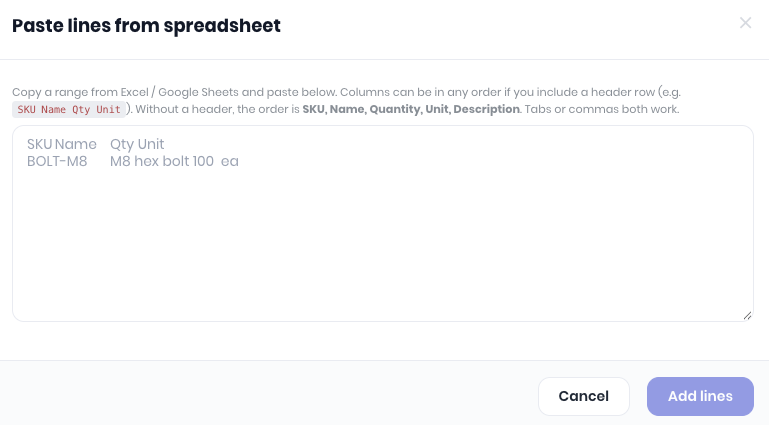
A preview shows how WorkGuru has read your columns, confirm and click Add Lines. Once added, to remove a line, click the Bin icon at the end of its row.
Notes:
- A blank quantity becomes 1, and "1,200" is read as 1200. If a quantity can't be read, WorkGuru tells you which rows to fix and adds nothing until you paste again.
- Rows with no SKU, name or description are skipped.
- Every line needs a quantity above zero before you can save the RFQ.
- A unit you paste is kept and sent to suppliers, but isn't shown in the editor.
Attachments
Save related files to the RFQ.

Optional: under Attachments, click Upload Attachment to add relevant files such as drawings or specifications, one file at a time.
Send It
Once the RFQ is ready ether click Save Draft to send later or to send now, Click Send. Confirm the Send RFQ popup to send the RFQ to the selected suppliers.
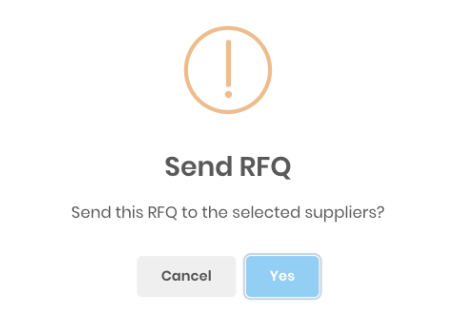
WorkGuru saves the RFQ and sends it. Once an RFQ is sent, its lines and details are locked, but you can still invite more suppliers, resend to a supplier, give suppliers more time, or cancel it by updating the RFQ. WorkGuru reminds suppliers before it closes.
To resend to a supplier, Open the RFQ from the RFQs Dashboard (RFQs -> RFQs) and click Resend beside the supplier. Use this after adding a missing email address, or if a supplier says they didn't get it. You need the Send RFQ to suppliers permission. Resend isn't offered for a supplier who has already submitted.
Notes:
- To send, an RFQ needs a title, a closing date in the future, at least one line and at least one supplier.
- Once an RFQ is sent, its details, lines and suppliers are locked. You can still invite more suppliers (see Article 6).
- An RFQ can have up to 1,000 lines and go to up to 50 suppliers.
- Attachments can be up to 10MB each, with up to 20 files and 25MB in total. Save the draft before uploading.
- RFQs can't be deleted. You can cancel one, or duplicate it to start again (see Article 6).
- Save as template saves the lines and suppliers as a template for next time, without changing the RFQ.
Was this article helpful?
That’s Great!
Thank you for your feedback
Sorry! We couldn't be helpful
Thank you for your feedback
Feedback sent
We appreciate your effort and will try to fix the article