Choosing a supplier happens in two steps. First you mark the preferred supplier: that records your choice and is what the quote for your client is built from, and suppliers aren't told. Then, once your client has accepted, you award the RFQ: that's final, and every supplier who quoted is emailed the outcome.
Mark the preferred supplier
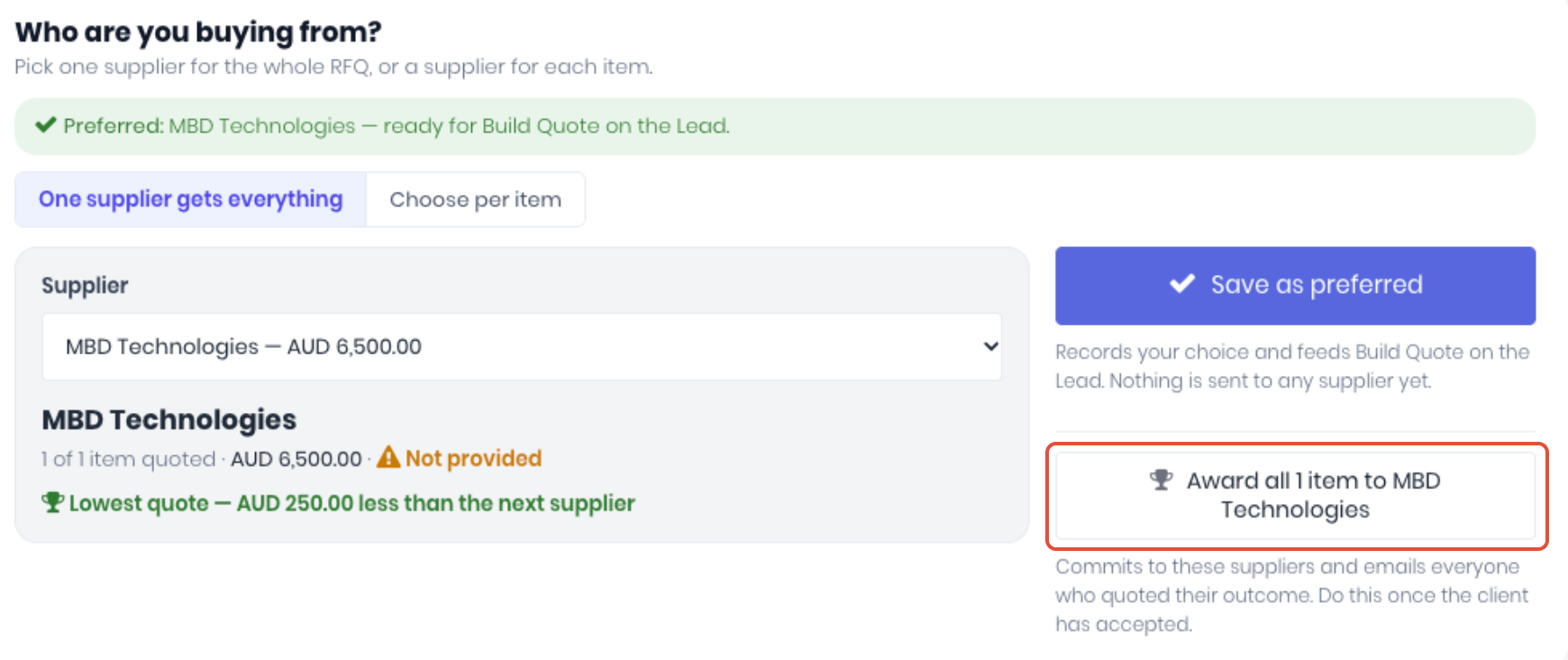
Open the RFQ's Compare page and the Under Who are you buying from? section, choose how to split it:
One Supplier Gets Everything
If you want all line items from one supplier's response to the RFQ to purchase, select the One Supplier Gets Everything tab.
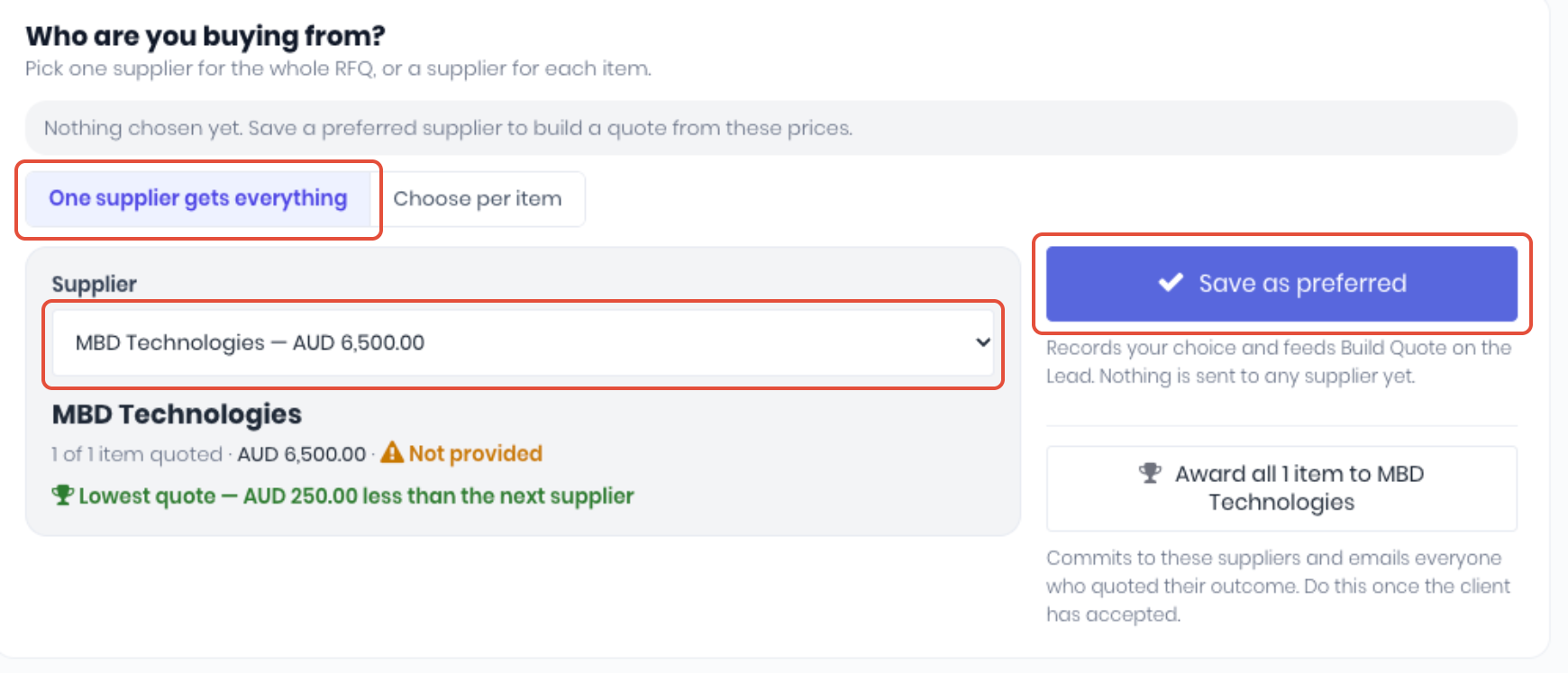
Select the supplier's response from the Supplier dropdown and click Save as Preferred.
Choose Supplier per Item
If you want to select individual line items across multiple supplier responses, select the Choose per Item tab.
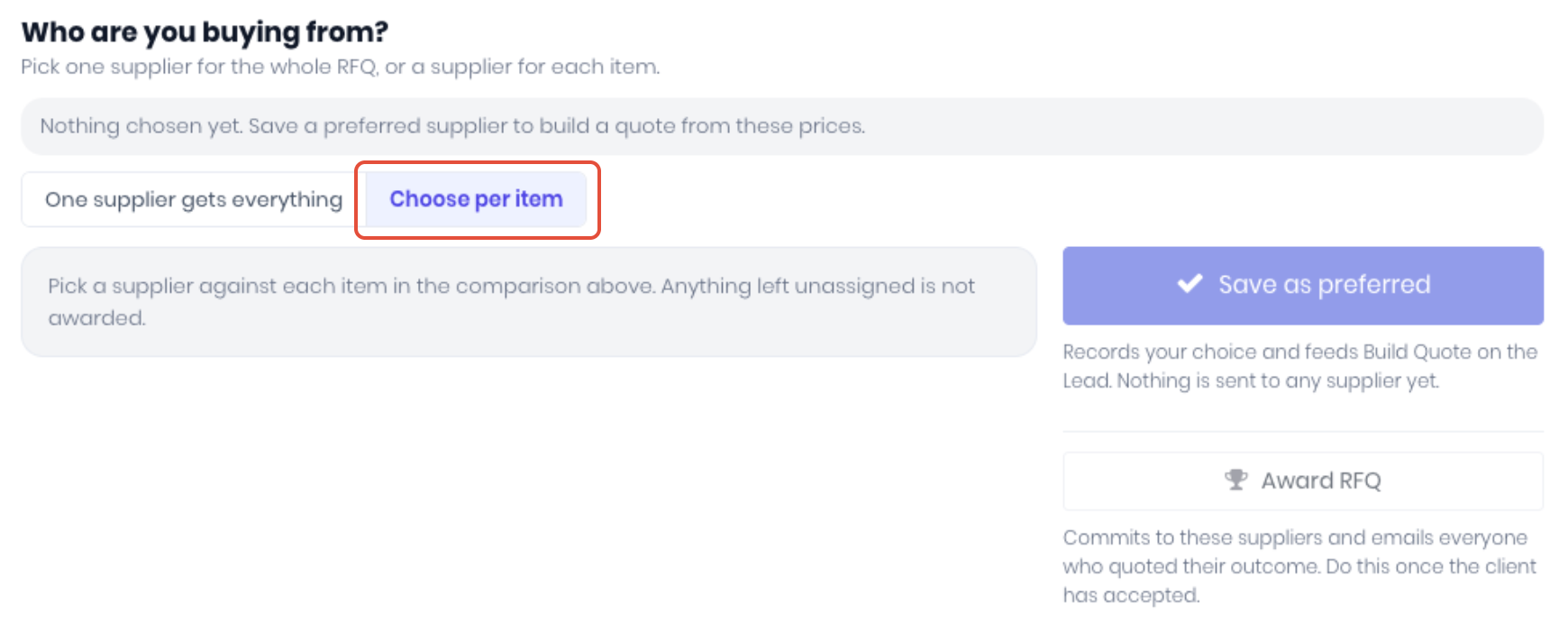
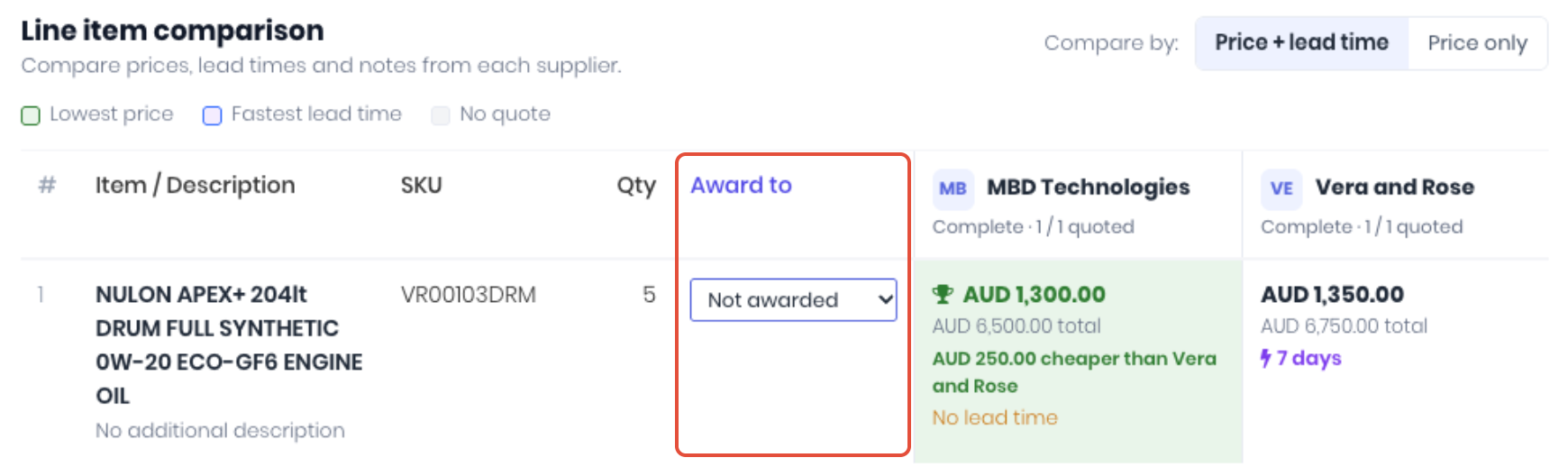
When this tab is selected, the Award To column is displayed in the Line Item Comparison section, for each line item, pick a supplier from the dropdown. Only suppliers who priced an item are offered. Click Save as preferred.
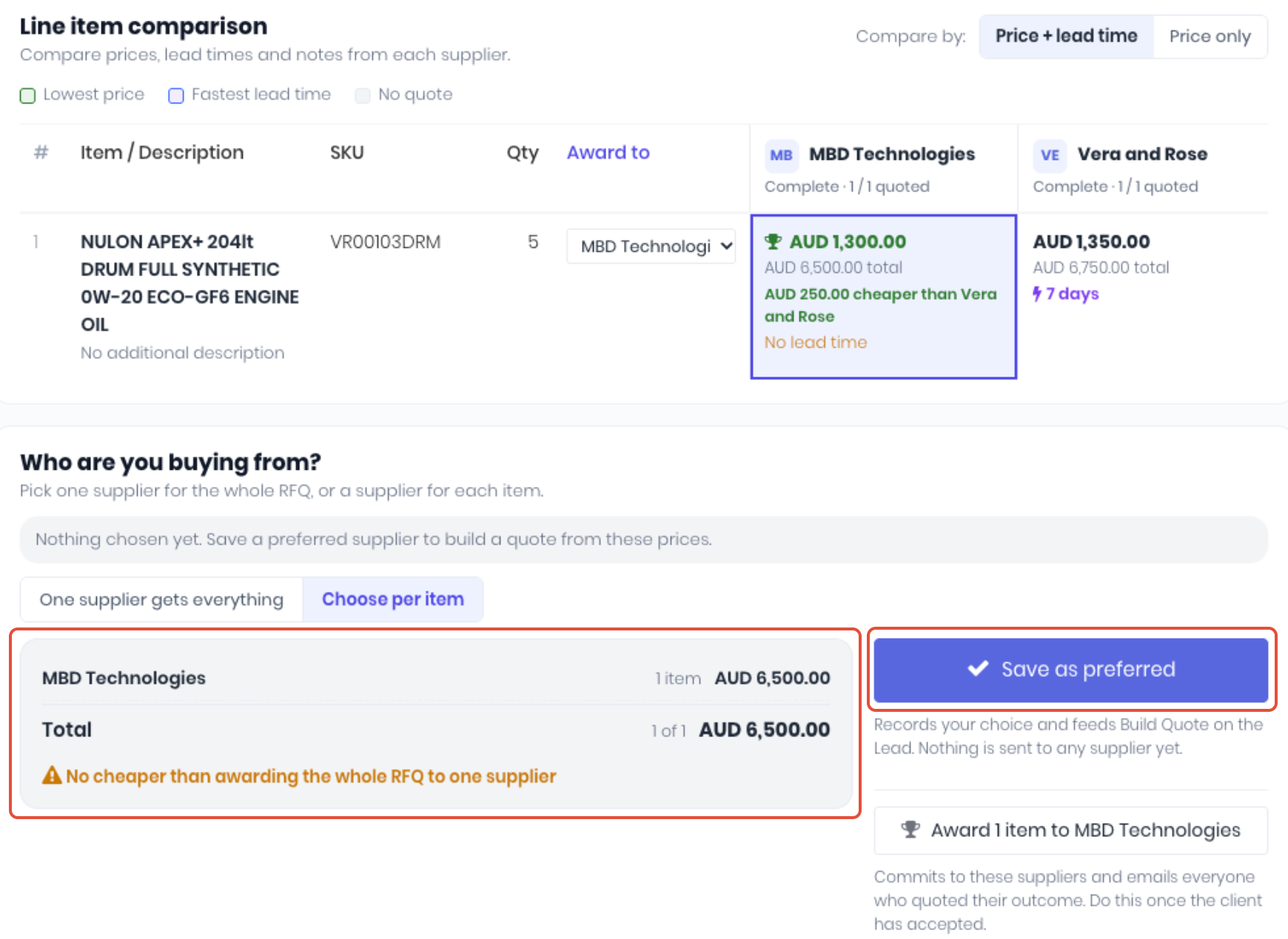
You can change the preferred supplier as often as you like. One all line items have a supplier selected, a award summary will be displayed in the Who are you buying from? section, confirm and click Save as Preferred.
Award the RFQ
Once you've confirmed your preferred suppliers and who you are buying from, click the Award button (for example Award all 12 items to Acme Steel, or Award to 2 suppliers).
The RFQ becomes Awarded and locks.
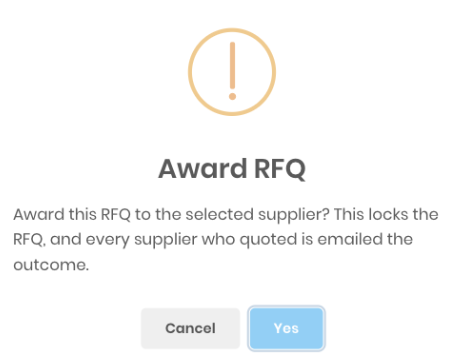
Every supplier who quoted is emailed whether their quote won or lost the RFQ. Winners hear that you'll be in touch to confirm the order. You can then raise the purchase order to formally purchase the items at the prices quoted.
Notes:
- If the RFQ is linked to a Lead, you can't award it until the Lead is Won.
- Awarding can't be undone, and an awarded RFQ can't be cancelled.
- A supplier who declined, or who priced nothing, can't be chosen.
- If a supplier updates their quote while you have the page open, WorkGuru asks you to reload and check their new prices before awarding.
- On a split award, items you don't assign to anyone aren't awarded.
- A supplier can still update their prices after you've marked them preferred. If they do, you're notified, and told if a quote already uses their old prices.
Was this article helpful?
That’s Great!
Thank you for your feedback
Sorry! We couldn't be helpful
Thank you for your feedback
Feedback sent
We appreciate your effort and will try to fix the article