If you're a supplier and one of your customers also uses WorkGuru, they can link their account to yours using WorkGuru Supplier Connect. Their RFQs then arrive in your WorkGuru as well as by email, and you can answer them without leaving WorkGuru.
Find the RFQ
When a customer with a connected WorkGuru sends you a RFQ, either the account manager on your client record for that customer or the person who accepted the connection will get a New RFQ received notification. Note: If neither is set up, your customer is told nobody at your end was notified. Set an account manager on the client record so RFQs always reach someone.
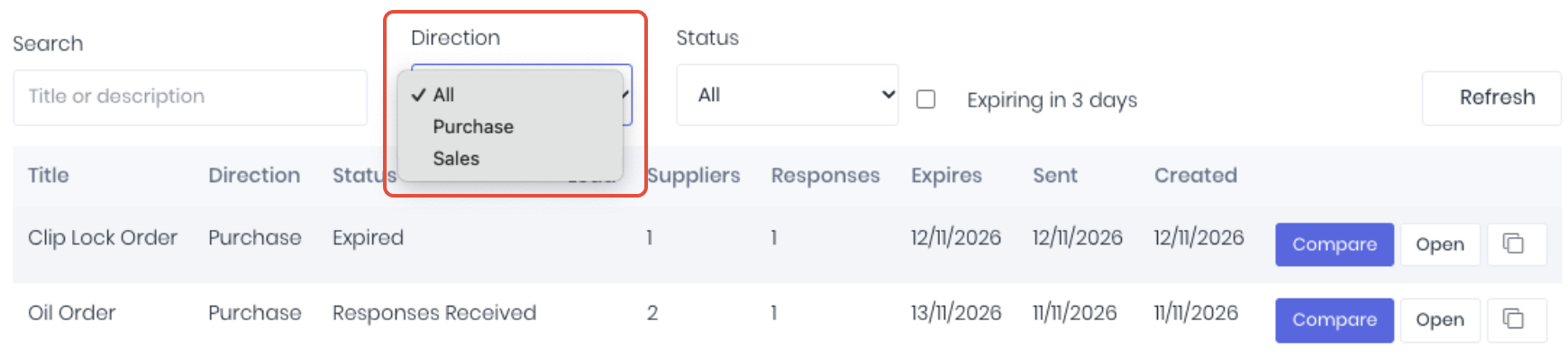
To open the RFQ either click the notification or the RFQ will also be displayed in the RFQ dashboard (RFQs -> RFQs). To view supplier connect RFQs on the dashboard, set the Direction dropdown to Sales, and click View on the RFQ. Each one shows who it's from and whether you've answered.
Respond
If you decide to respond to the RFQ:
- Enter a Unit price and, optionally, a Lead time (days) and Notes for each item. You can also enter multiple prices at once by downloading the items as a CSV, price them in a spreadsheet and upload it again.
- Optional: add additional information such as notes and attachments.
- Click Submit your quote.
You can update your quote until the RFQ closes. To decline, pick a reason if you want to give one, click Decline this RFQ and confirm.
Link it to a Lead
Use Accept as a sales opportunity to link the RFQ to one of your Leads: pick a Lead and click Link to Lead. The RFQ then shows on that Lead's RFQs tab. Create the Lead first if you don't have one yet.
Notes:
- The RFQ in WorkGuru and the email link are the same response: answer in either place.
- If your customer unlinks you, RFQs they've already sent stay readable but can only be answered from the email link.
Was this article helpful?
That’s Great!
Thank you for your feedback
Sorry! We couldn't be helpful
Thank you for your feedback
Feedback sent
We appreciate your effort and will try to fix the article