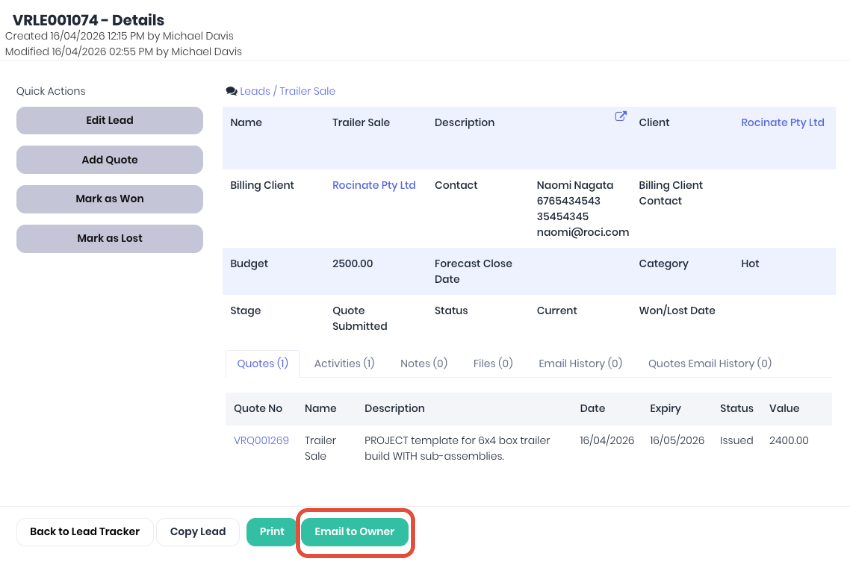
If you need to handover a lead as part of your sales workflows, you can easily send a templated email directly from the lead. From the lead's detail page click on Email to Owner.
Scroll to the bottom of the quote details, to compose the email. You can automate/pre-fill this screen by setting up your email templates.
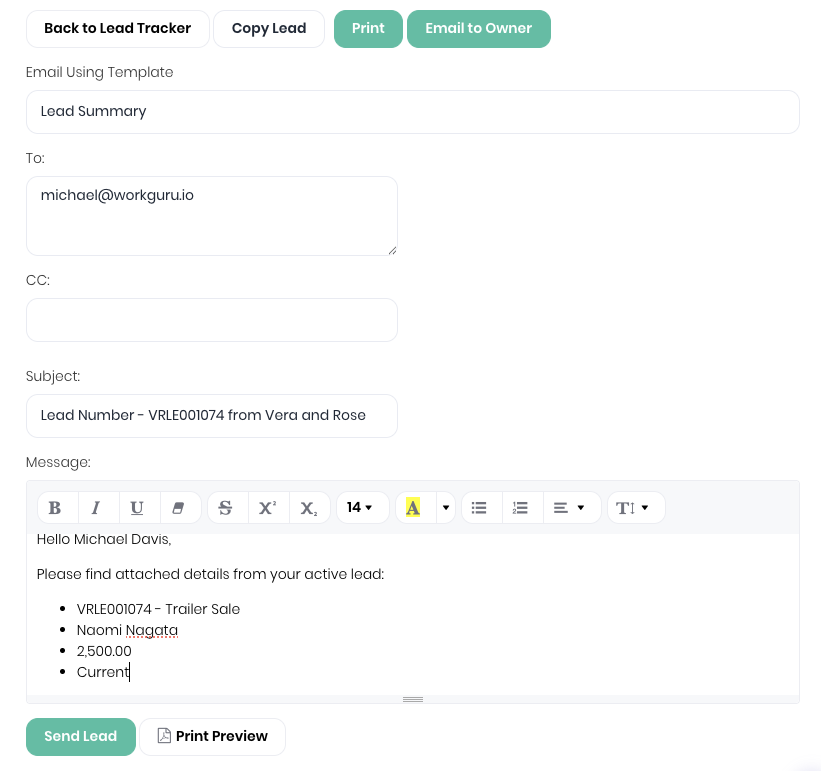
- Email Using Template - Select the required lead document template
- To - Will default to the email address of the lead owner, you add or edit to email to alternate email addresses as required. Multiple addresses are separated by a comma.
- CC - Email CC will default to the logged in WorkGuru staff email. This is handy to confirm the email was sent successfully.
- Subject - Templated subject line, update as required.
- Attach Linked Files - Attached any files that have been stored in the quote's Files tab.
- Message - Email body, text can be templated with populated fields via email templates.
- Print Preview - Preview the quote with the selected lead document template
Click Send Lead to send to the owner/recipients. You will see a prompt saying Lead has successfully emailed!, or a message if there is any issues sending with the relevant details.
Was this article helpful?
That’s Great!
Thank you for your feedback
Sorry! We couldn't be helpful
Thank you for your feedback
Feedback sent
We appreciate your effort and will try to fix the article