To-Dos can be setup at the template level if the the task to-do lists is template specific. This prevents the need to setup the to-do lists every time you create a new project, production job with the template.
- Adding Template Task To-Dos
- Assigning Template Task To-Dos
- Editing Template Task To-Dos
- Deleting Template Task To-Dos
- Completing Template Task To-Dos
Task to-dos are a project management tool to manage accurate progress. Staff can complete relevant to-dos or milestones, by marking them as complete in conjunction with their timesheets. To-dos can be assigned to specific staff, and then scheduled when on the project or production job.
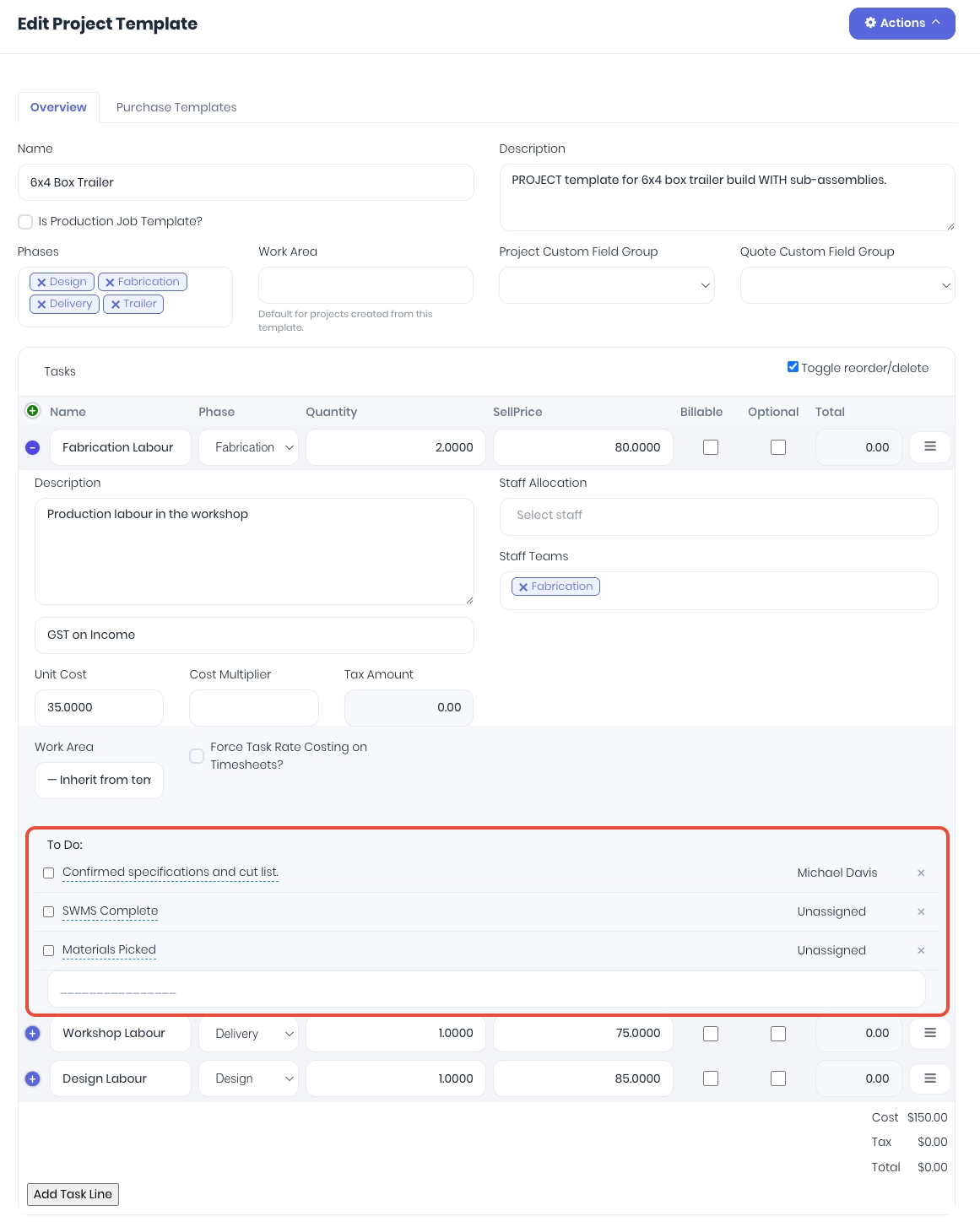
Task to-dos can also be setup to default as part of the task, project, production job or via the to-do dashboard.
Adding Template Task To-Dos
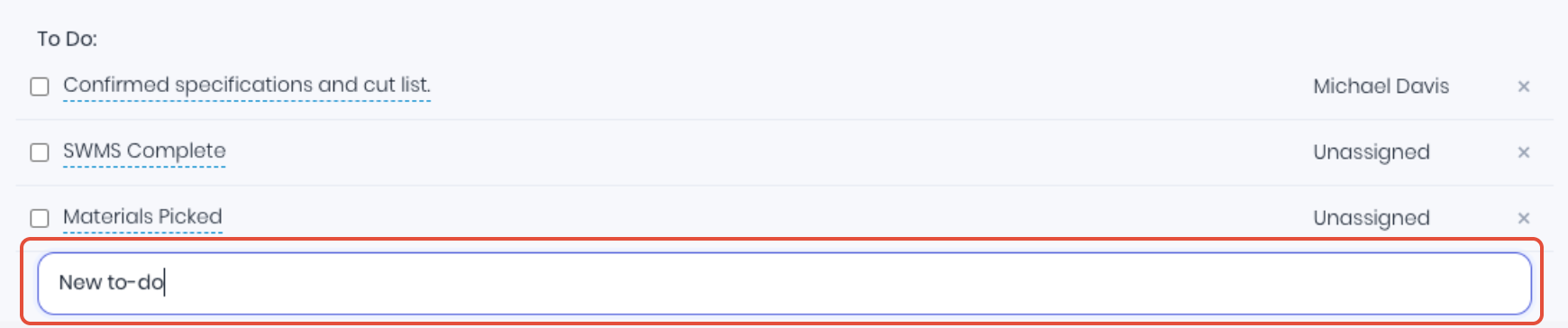
When adding or editing template tasks, expand the task using the blue + icon and type the new to-do into the To Do field and hit the Enter key to apply. Repeat as required to add multiple to-dos if required. To-dos can be dragged and dropped to re-order the list.
Assigning Template Task To-Dos
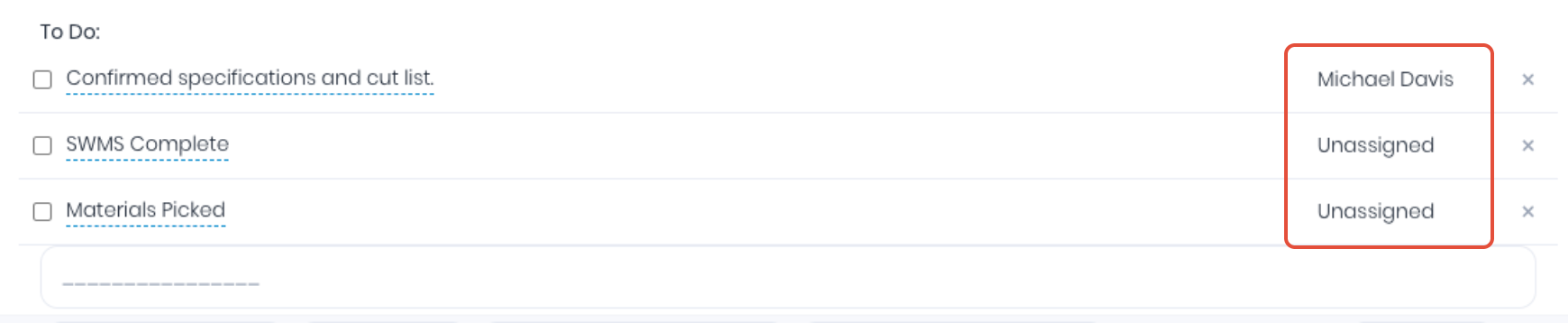
Once a to-do has been added, assign the to-do to a user by clicking Unassigned or the existing user Name and selecting the required user from the dropdown. Assigned users can be given a due date by editing the task on the project or production job or via the to-do dashboard.
Editing Template Task To-Dos
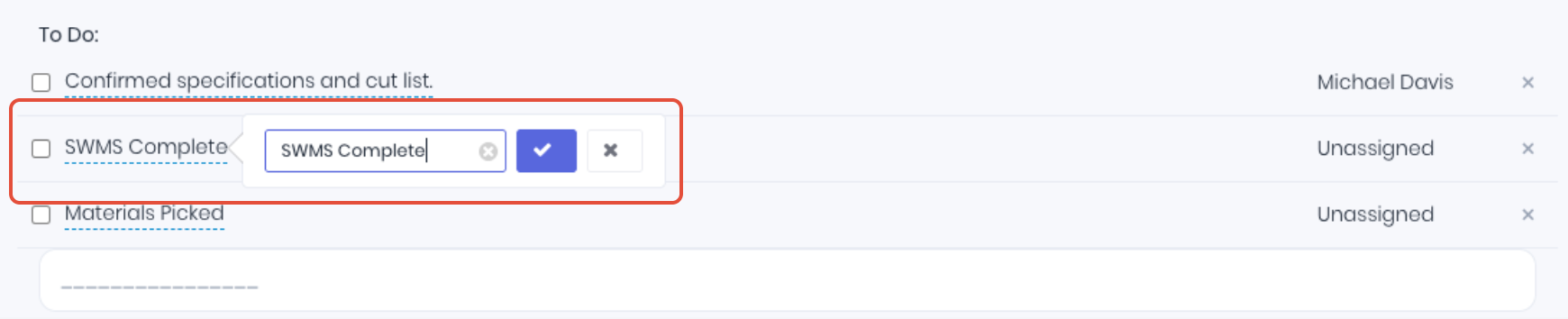
Edit the task to-do's by clicking on the to-do Name and entering the updates in the popup. Click the Tick icon to apply changes.
Deleting Template Task To-Dos
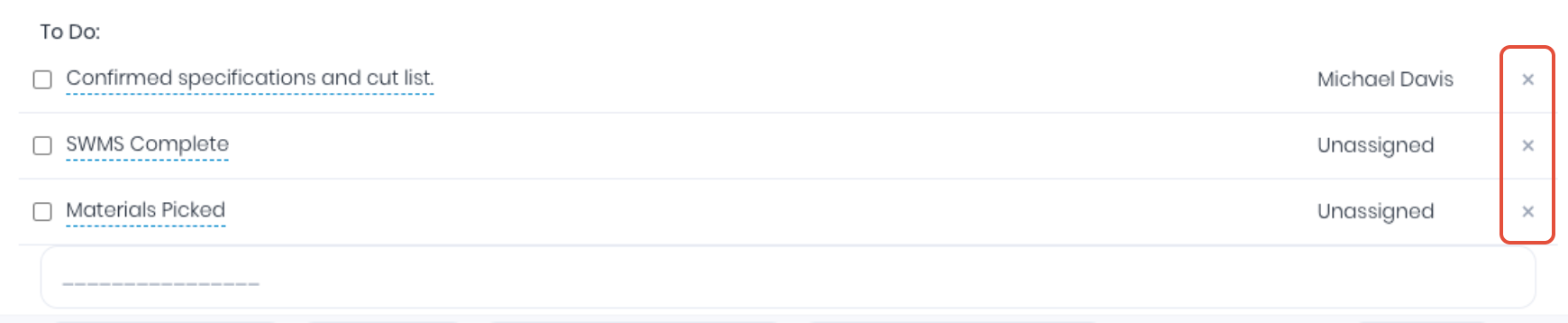
If you want to remove a specific Task To Do all together then you can delete it by hitting the "X" at the end of the row and hit Ok on the pop up to confirm.
Completing Template Task To-Dos
Task to-dos can be completed once the template has been added to a project or production job via the following options:
Was this article helpful?
That’s Great!
Thank you for your feedback
Sorry! We couldn't be helpful
Thank you for your feedback
Feedback sent
We appreciate your effort and will try to fix the article