WorkGuru AI takeoffs allow you to quote faster from drawings, spreadsheets and documents, and leverage the benefits of both AI, and their product / templates catalogue in WorkGuru. The AI Takeoff feature allows you to upload a drawing to WorkGuru - which will be sent to an LLM of choosing (currently Google Gemini) for extraction and matching against your product list, to generate you a quote based on the BOM. WorkGuru AI takeoffs are credit based, with each takeoff using credits from a monthly balance. Note: During the Beta phase, the credit balance is fixed to 200 a month.
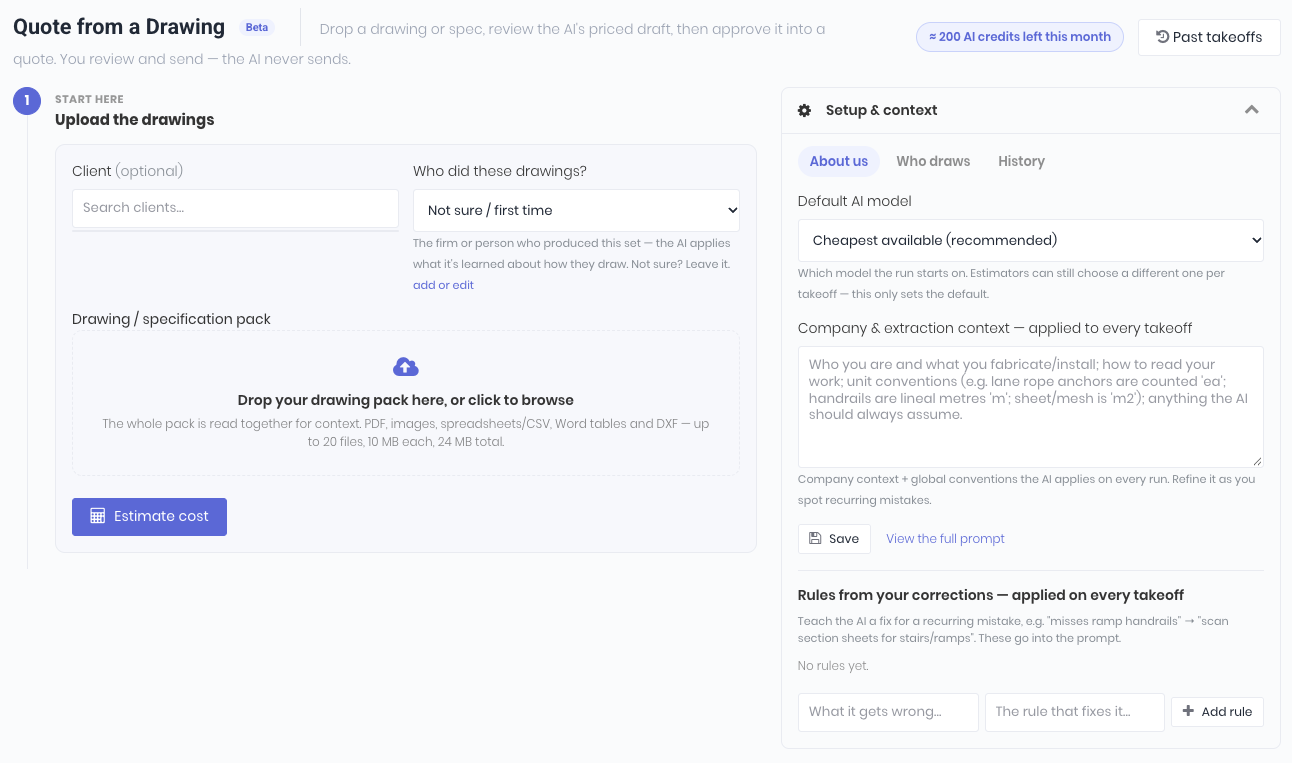
You control the takeoff process by providing a prompt about what your business does, and what to look for in the drawings. When it gets something wrong, or is unsure what to map it to, your corrections TRAIN the AI, to learn better for next time. If you get drawings from multiple different providers, the learning is provided specifically to that drawing provider to make it faster and more accurate for next time. Essentially, the more you use and train it, the better it gets.
To enable WorkGuru AI takeoffs for your quotes, contact the WorkGuru support team to request access to the beta program!
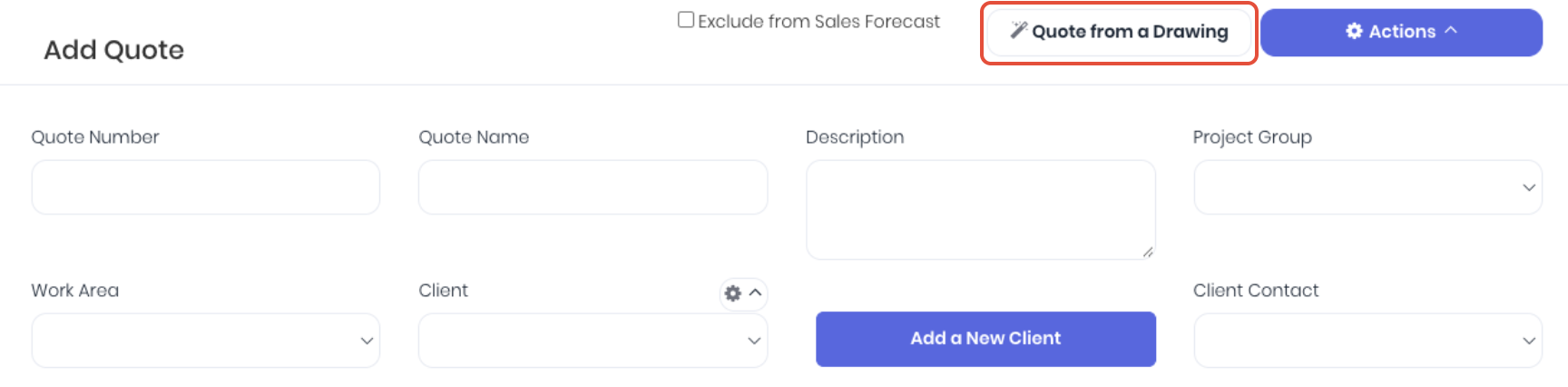
Once enabled, start the takeoff process by clicking Quote From a Drawing from a new quote.
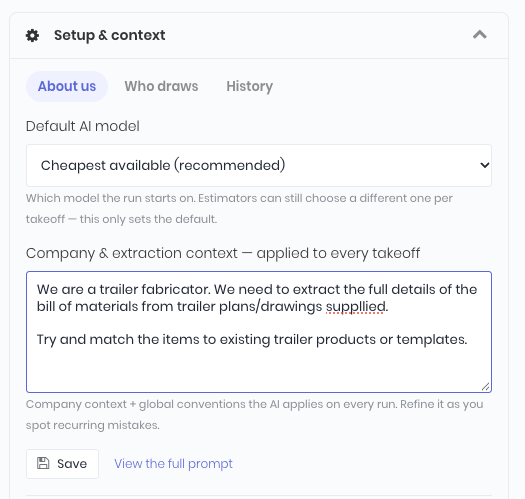
Setup and Context
To help your AI better extract the plans, you can assist it by adding context around what you do and what you want it to do. This is similar to a normal prompt you would give your AI assistant when using it natively. Enter the company details and contexts as required and click Save. You cam click View the Full Prompt to confirm exactly what is being communicated to the AI.
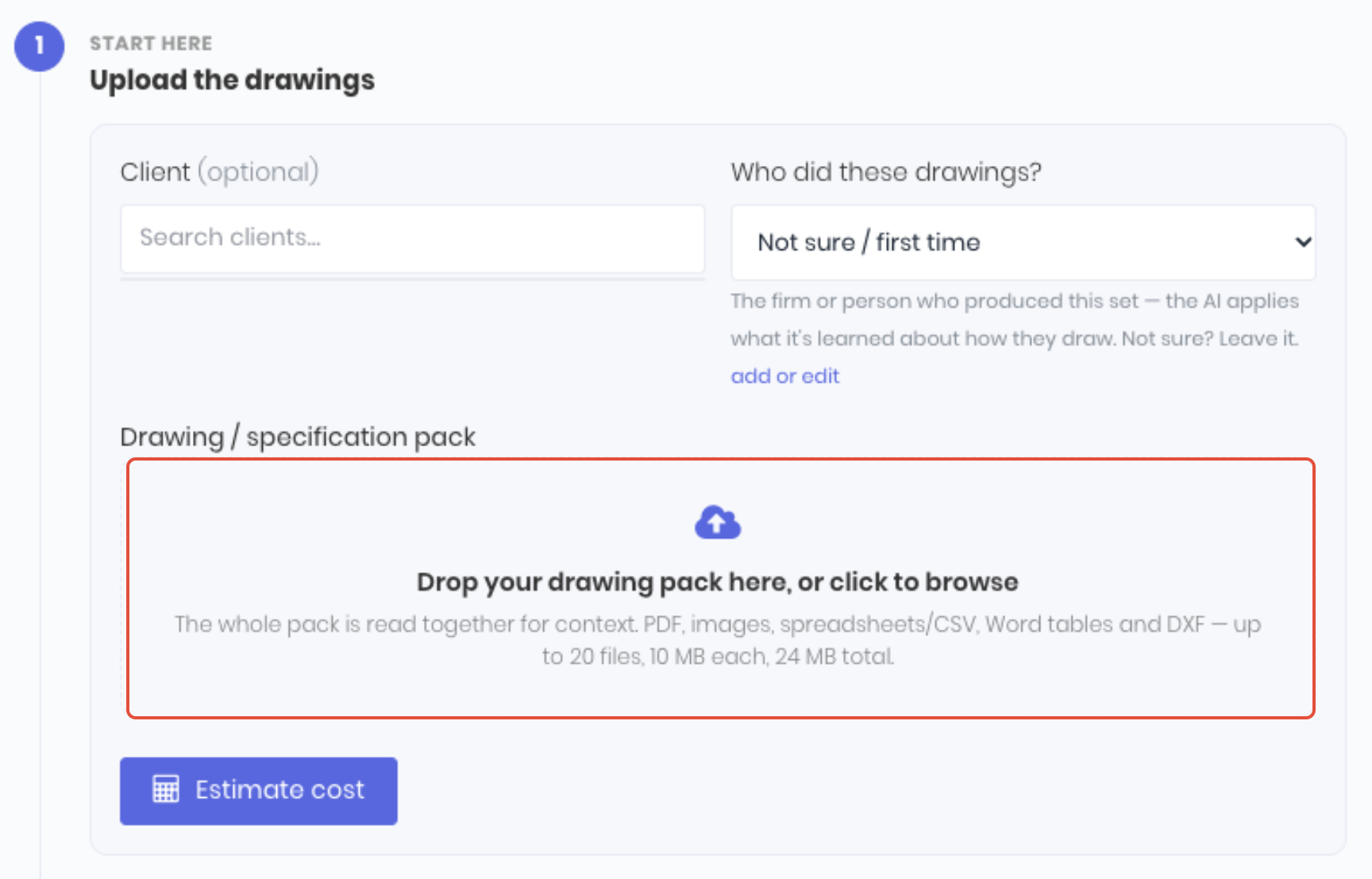
Upload the Drawings
Upload the drawing or file for the AI to analyse. The Client and Who Did These Drawings? are optional, but are there to help train the AI to start learning for followup plans. Click to browse or drop your file into the upload field and click Estimate Cost.
Select the required Forecast & Model based on speed, accuracy and credit usage.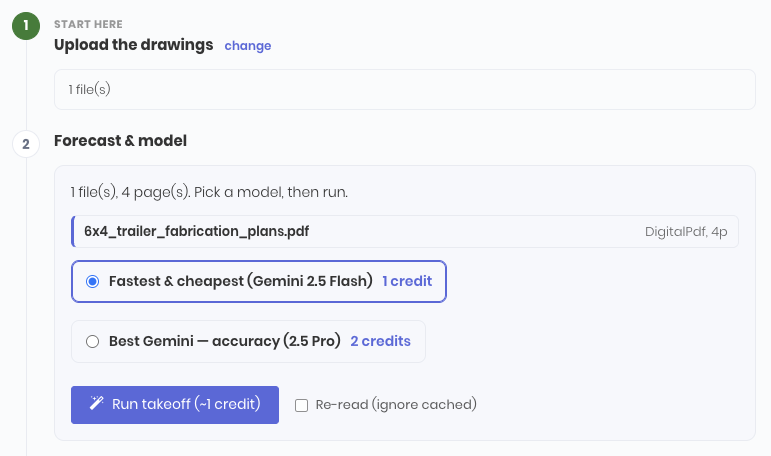
The takeoff will then run. The timeframe is based on complexity and options selected. The extraction results are displayed when complete ready to review. Each line will display the wether it was Extracted directly (was on the plan) or Estimated (wasn't on the plan but thinks it should have been) and why it has or hasn't been matched with existing WorkGuru tasks and products. It is important, especially with the first takeoffs, you review all the extracted lines for correctness. For each line, you can:
- Qty - Confirm or update line quantity
- Unit $ - Confirm or update line unit sell price.
- Change - Match the line to existing task or product.
- Mark Reviewed - Use as a checklist to use when the line has been confirmed as correct.
- Remove - Remove the line as it is incorrect and can't be changed.
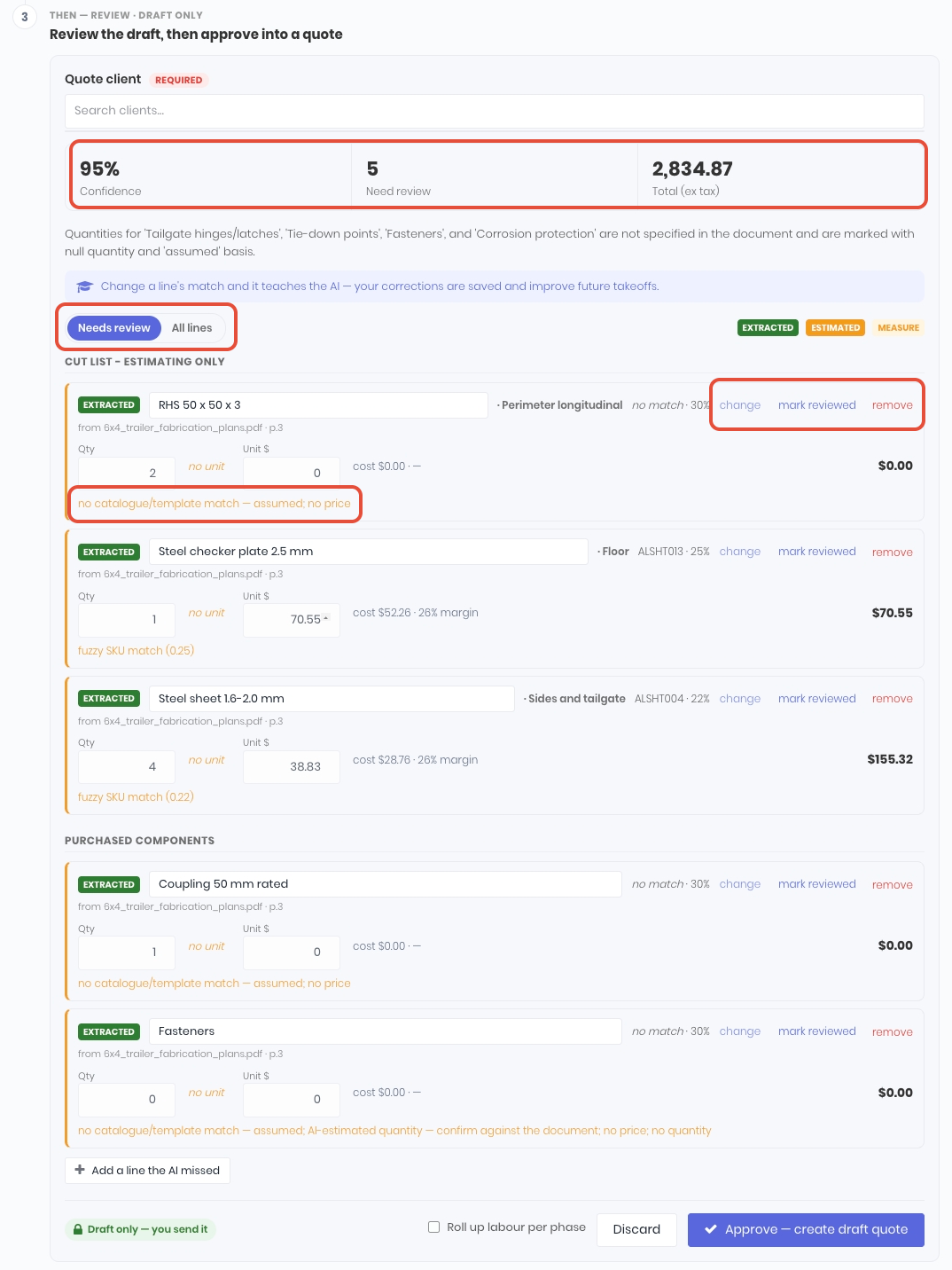
Lines that the AI has extracted that clearly match existing SKUs will display with an explanation of why it matched to that SKU and a percentage of accuracy of the match:
 Lines that have been correctly extracted but the AI incorrectly matched couldn't match, can be updated by clicking Change. You can then lookup the correct product/SKU.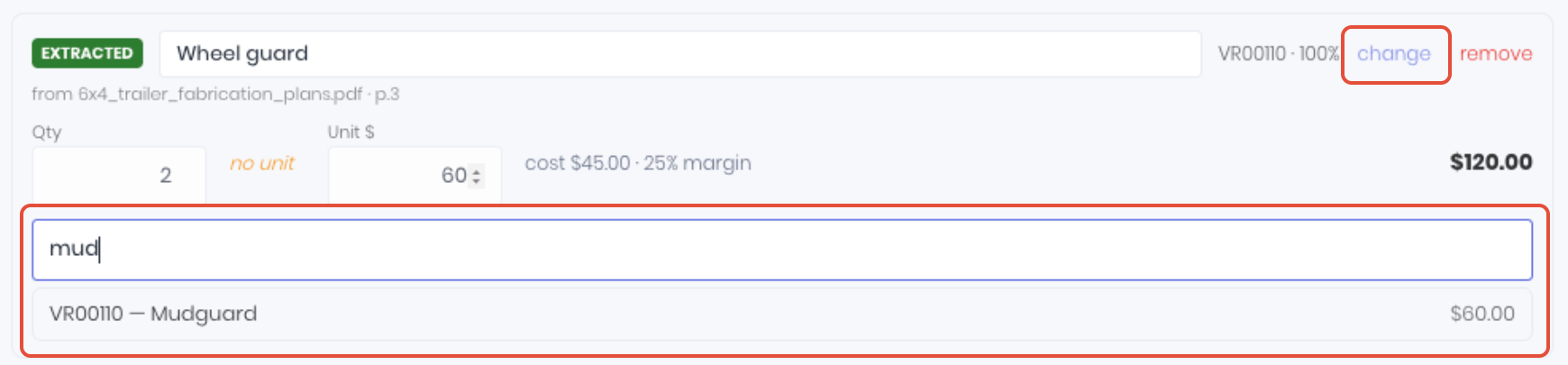
If the AI extraction as missed anything, click Add a Line the AI Missed to add products in as required. Enter what it is in the the name field
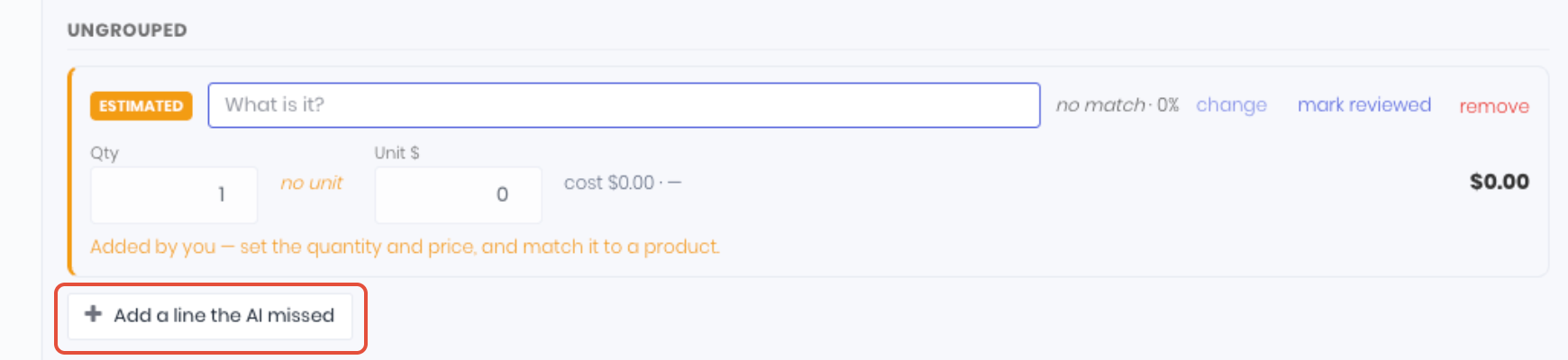 When you have reviewed all lines, enter the Quote Client and click Approve - Create Draft Quote.
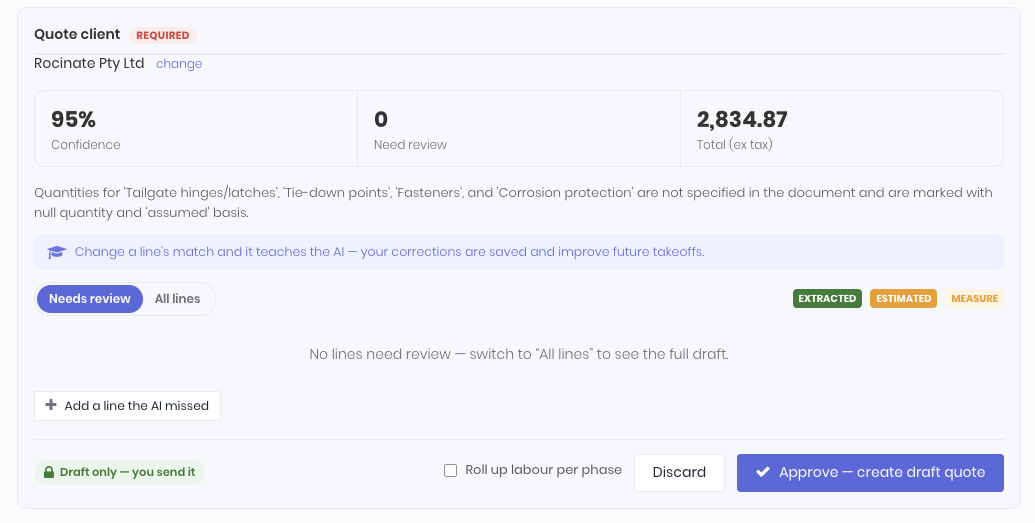
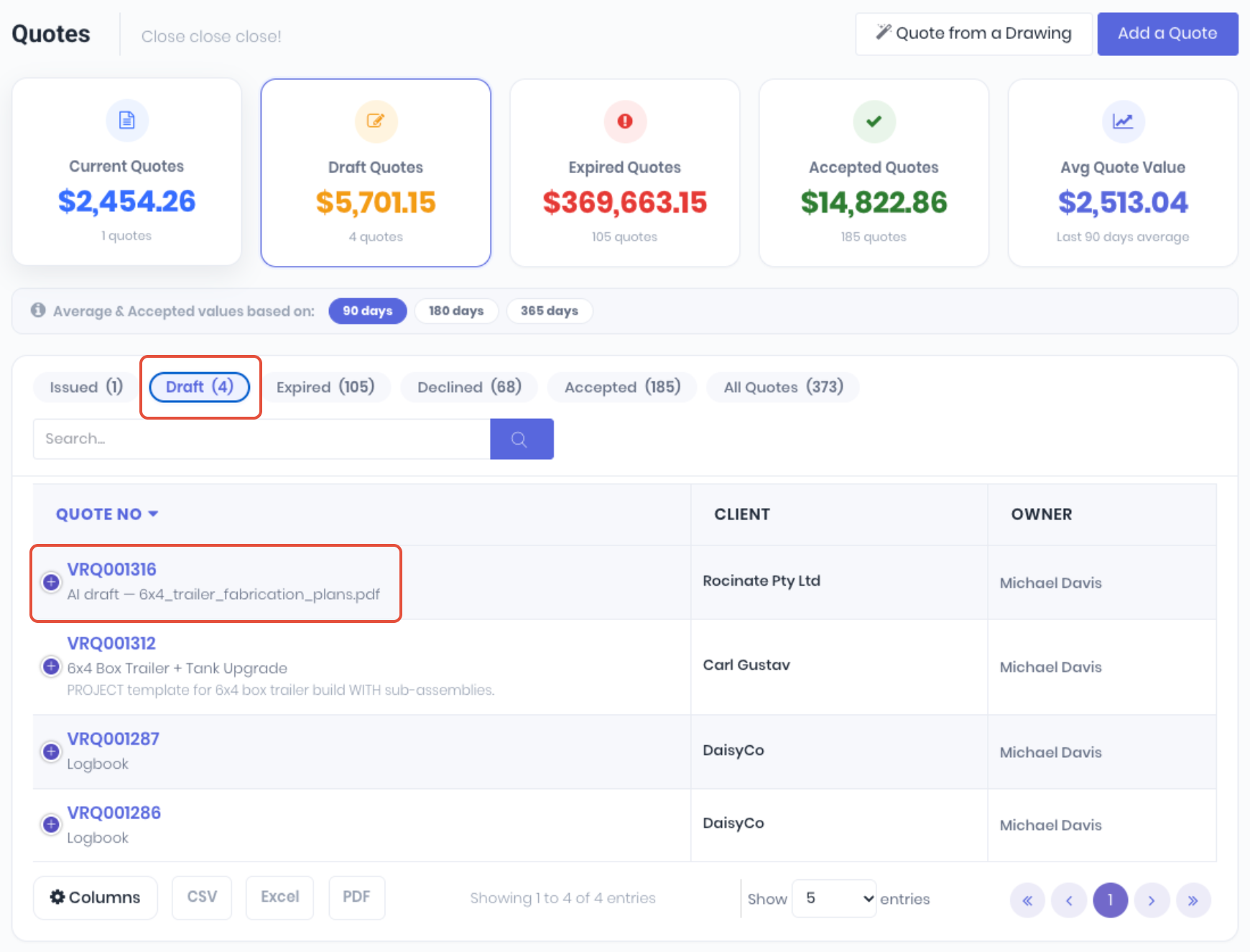
The quote is then created as a Draft, prompting another confirmation before approval and issue to the client with the appropriate quote document template. Note: All takeoffs are prefixed by AI Draft - Takeoff FileName by default or easy identification before renamed etc.
Was this article helpful?
That’s Great!
Thank you for your feedback
Sorry! We couldn't be helpful
Thank you for your feedback
Feedback sent
We appreciate your effort and will try to fix the article