Beyond the four standard fields (Your Name, Your Email, Lead Name and Lead Description), you can collect any extra information you like — a phone number, a suburb, a budget, how they heard about you, and so on. These extra fields are called custom fields, and whatever a visitor types into them is saved against the Lead in WorkGuru.
Custom fields come from your Lead custom fields
A WebForm doesn’t invent fields of its own. Instead, it lets you choose from the Lead custom fields already set up in your WorkGuru account. So the first step is to make sure the field you want exists as a Lead custom field.
You can find out more about WorkGuru custom fields by checking out these support articles here: https://support.workguru.io/support/solutions/articles/43000515214-custom-field-overview
Choosing which fields to include
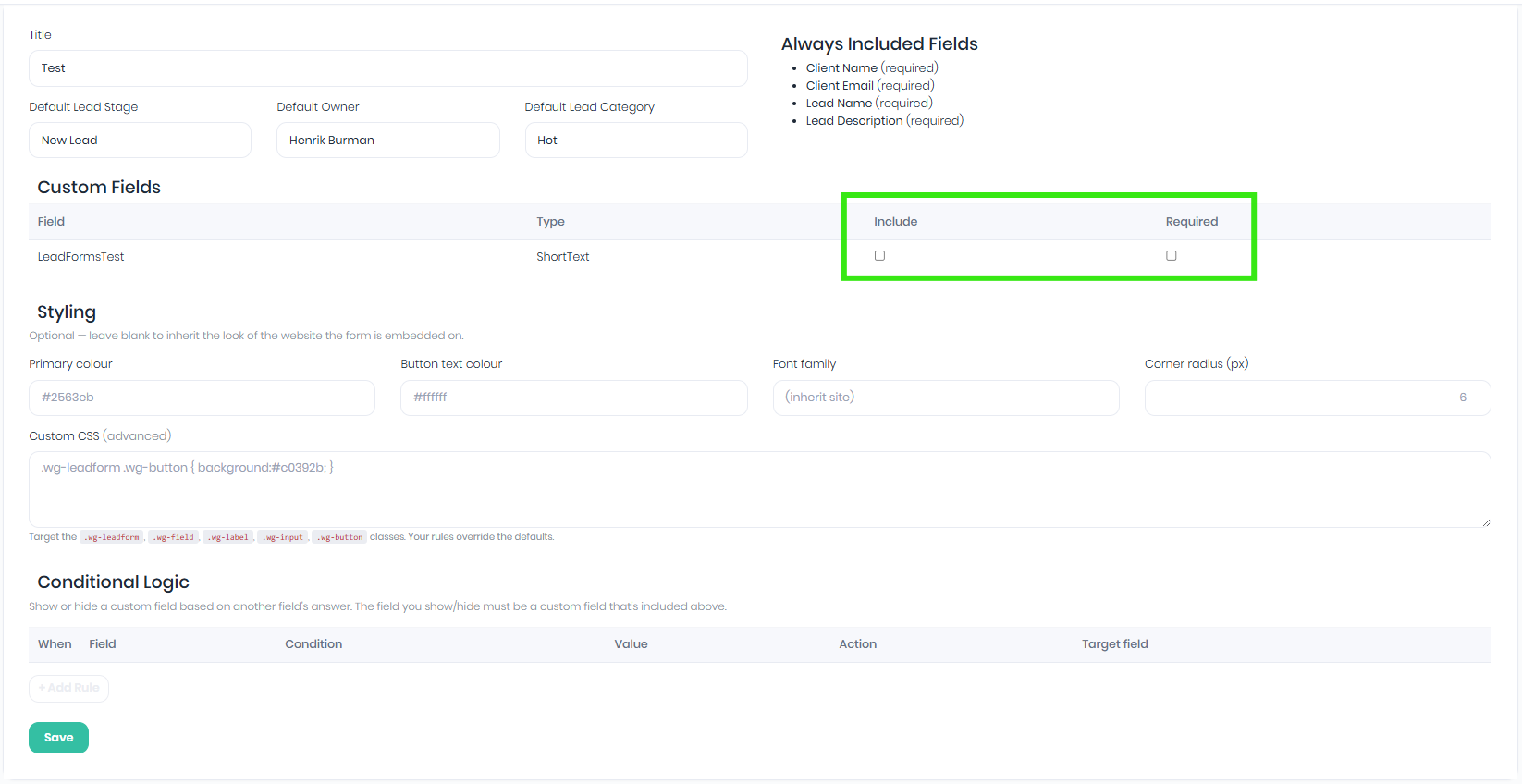
When you create or edit a form, you’ll see a Custom Fields table listing every available Lead custom field. Each row has two tick-boxes:
| Column | What it does |
|---|---|
| Include | Tick this to add the field to your form. Only ticked fields appear on the website. |
| Required | Tick this if the visitor must fill the field in before they can submit. Leave it unticked to make the field optional. |
The Field and Type columns are shown for reference so you can see the field’s name and what kind of input it is.
How custom fields appear to visitors
Each included custom field is shown on the form using its label, in the order the fields are listed. The four standard fields always appear first (Your Name, Your Email, Lead Name, Lead Description), followed by your custom fields. Text-style fields render as a normal single-line box; longer “text area” fields render as a multi-line box; email fields get email validation.
Where the answers end up
When someone submits the form, each custom field answer is saved against the new Lead’s matching custom field — exactly as if a team member had typed it into the Lead in WorkGuru. You’ll see the values on the Lead record in the Lead Tracker.
Was this article helpful?
That’s Great!
Thank you for your feedback
Sorry! We couldn't be helpful
Thank you for your feedback
Feedback sent
We appreciate your effort and will try to fix the article