Once an RFQ has been awarded, you can quickly convert the RFQ to a purchase order for each winning supplier in one click, with their won items and quoted prices autofilled in.
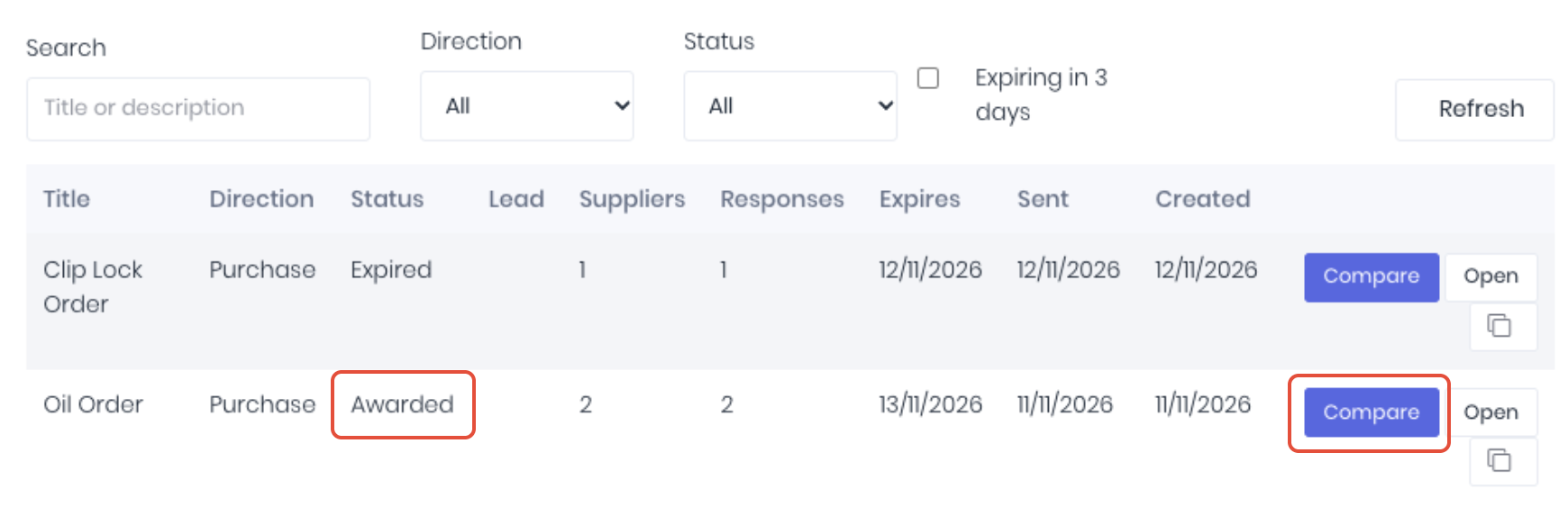
To convert the RFQ to an order, open the awarded RFQ's Compare page.
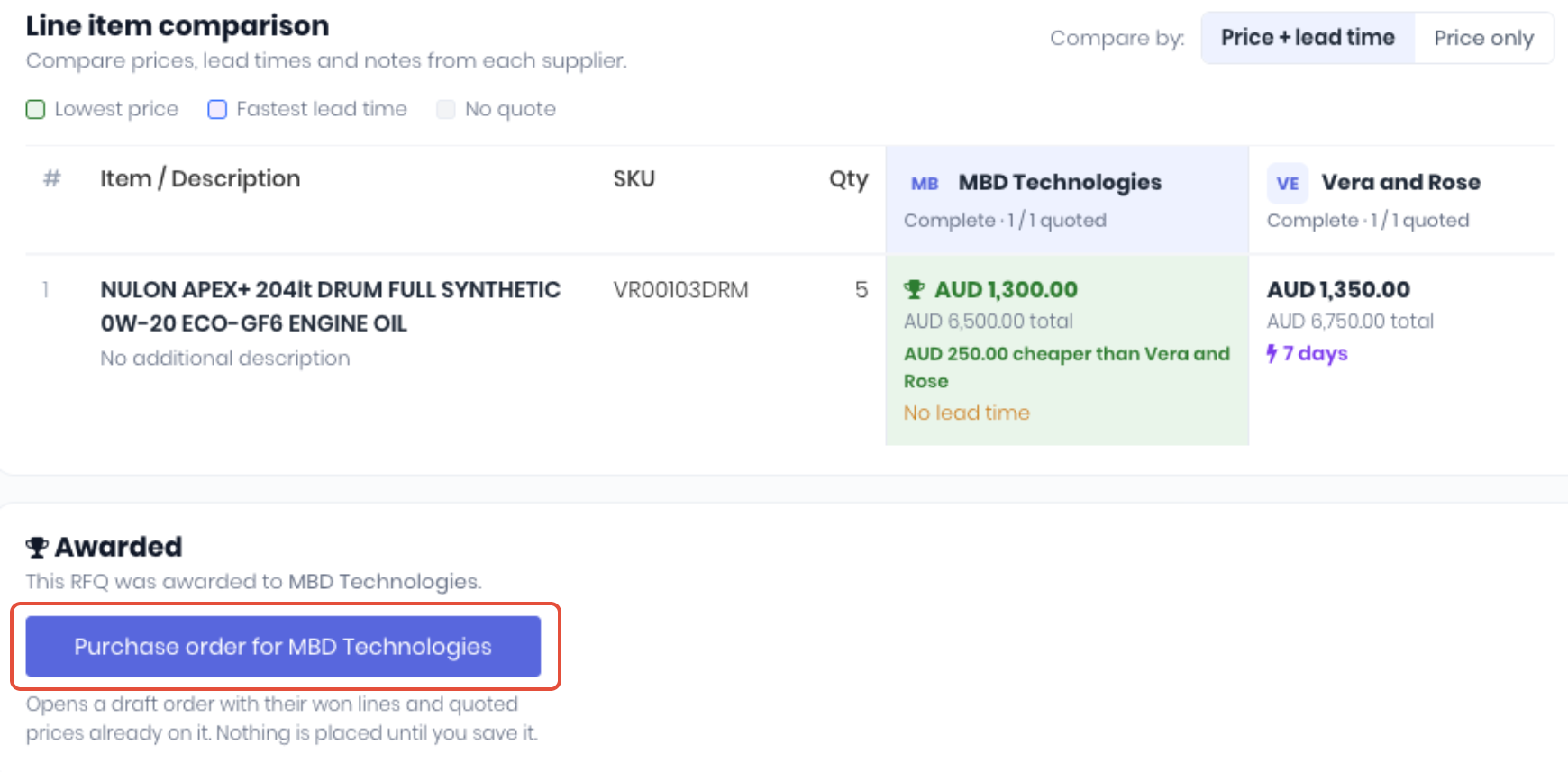
Click Purchase order for {supplier}. A split award has one button per winning supplier.
A draft purchase order will be created with the following information from the RFQ:
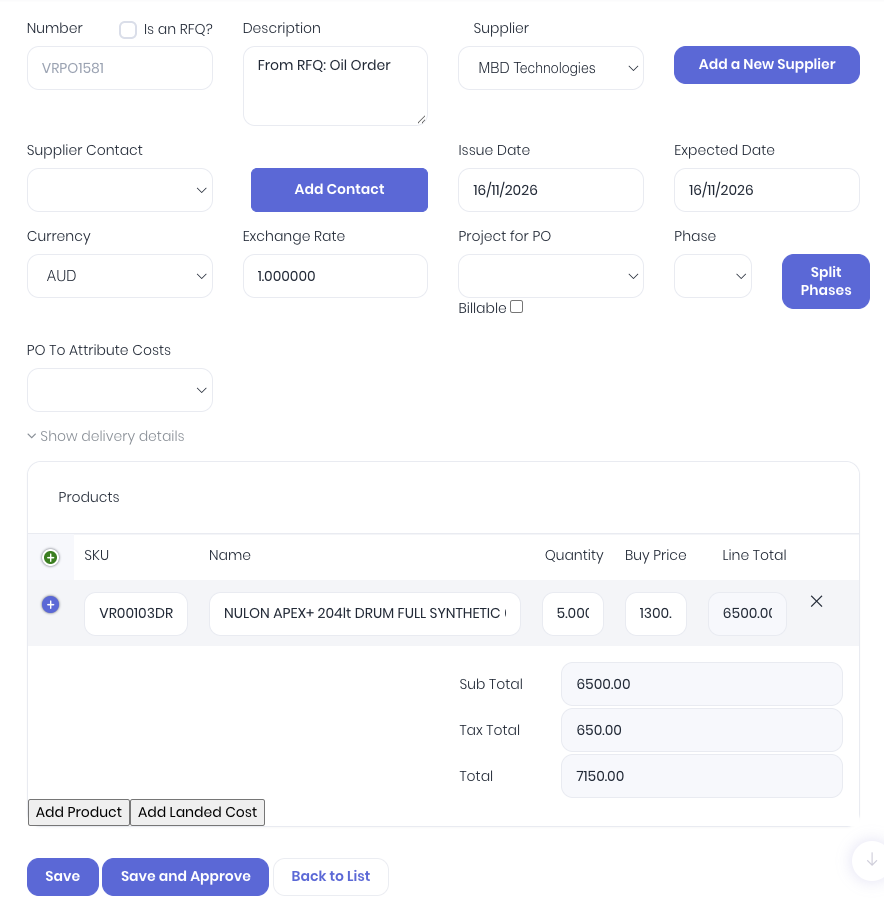
- Supplier - The winning supplier.
- Status - Draft.
- Currency - The currency the supplier quoted in.
- Expected Date - Today plus the supplier's longest lead time on the items they won.
- Description - "From RFQ: {title}", plus the supplier's note if they left one.
- Lines - Only the items they won and priced, at their quoted price, with their note on each line.
- Product - Linked when the line's SKU matches exactly one product in your catalogue.
- Supplier Code - The supplier's own code for the product, if you've recorded it.
- Tax - The supplier's tax rate, otherwise the product's purchase tax, otherwise your default purchase tax.
You can then modify the draft as required, such as allocate to a project etc, then approve and send as per your normal purchasing workflows.
Notes:
- The button only appears once the RFQ is awarded. Until then the prices are a quote, not a commitment.
- Check the tax on each line before you save, especially for items that aren't in your catalogue.
- If a supplier quoted their won items in more than one currency, WorkGuru can't put them on one order: raise it by hand.
Was this article helpful?
That’s Great!
Thank you for your feedback
Sorry! We couldn't be helpful
Thank you for your feedback
Feedback sent
We appreciate your effort and will try to fix the article