You can manage your quotes from the quotes dashboard page (Sales -> Quotes).
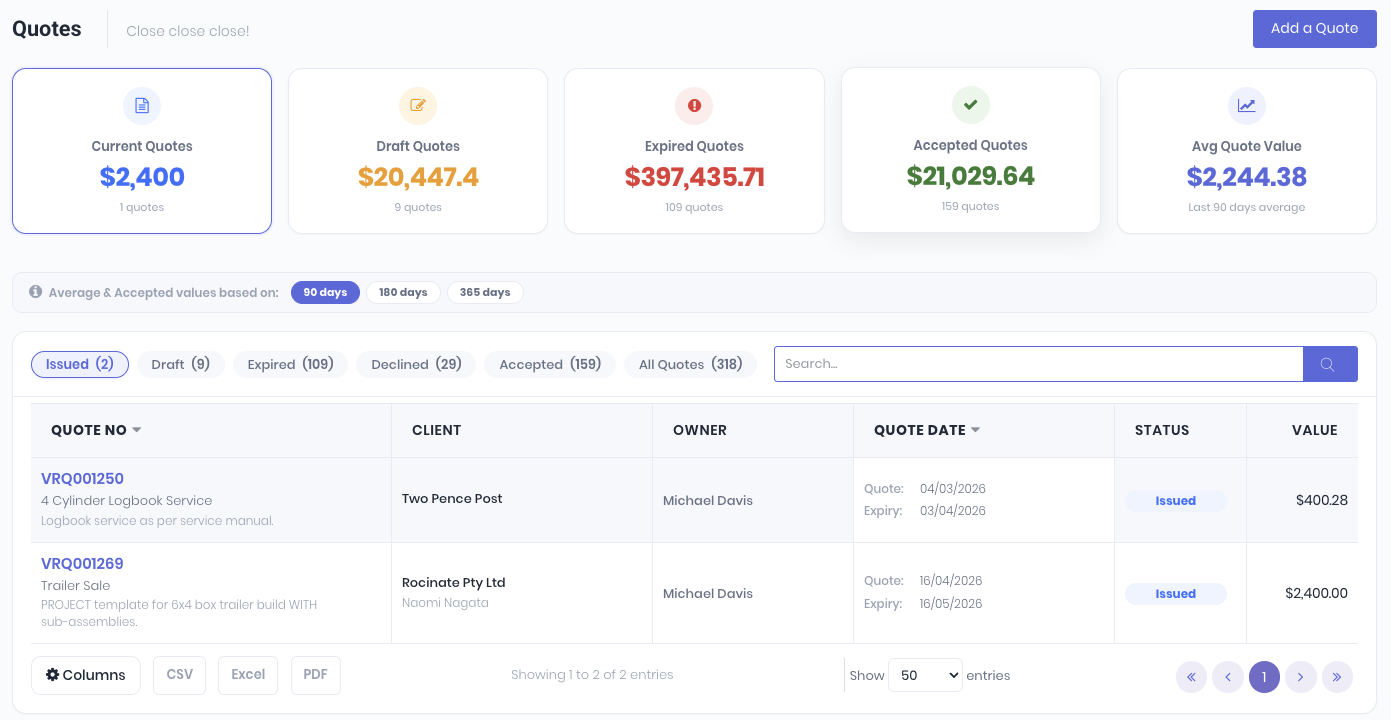
The quotes dashboard displays your current sales pipeline by Current Quotes, Draft Quotes, Expired Quotes, Accepted Quotes and Average Quote Value. You can click on each widget to display that subset of quotes. You can select the timeframe the widgets are displaying data by selecting 90 days, 180 days or 365 days.

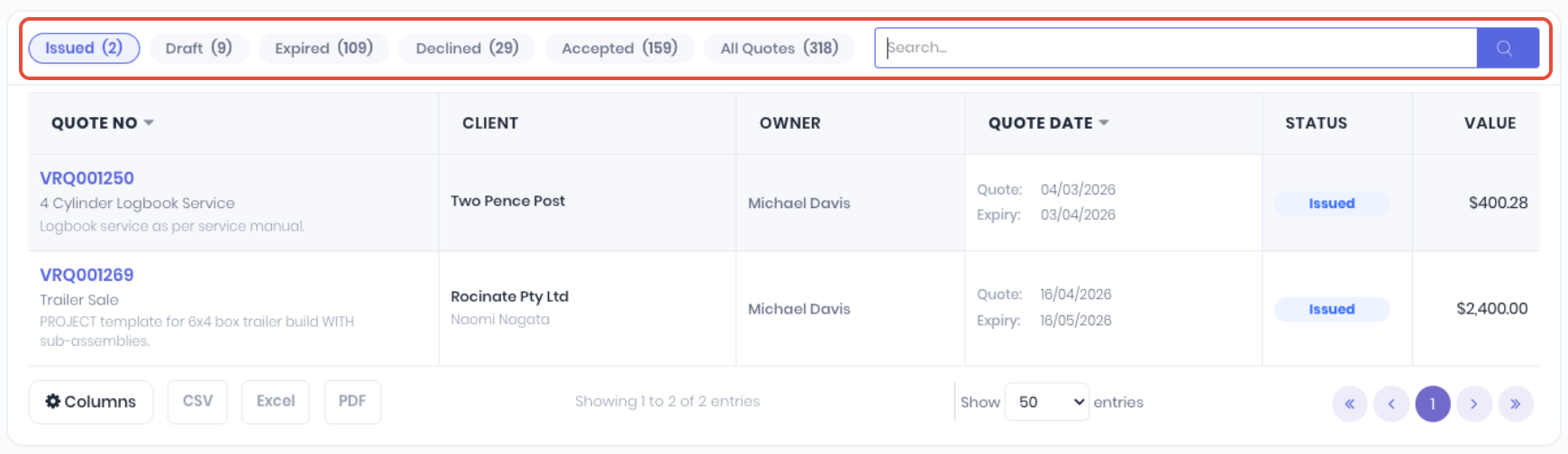
You can arrange the quote list by clicking on the Issued, Draft, Expired, Declined, Accepted or All Quotes tabs, or searching by quote number, name, client, description or owner.
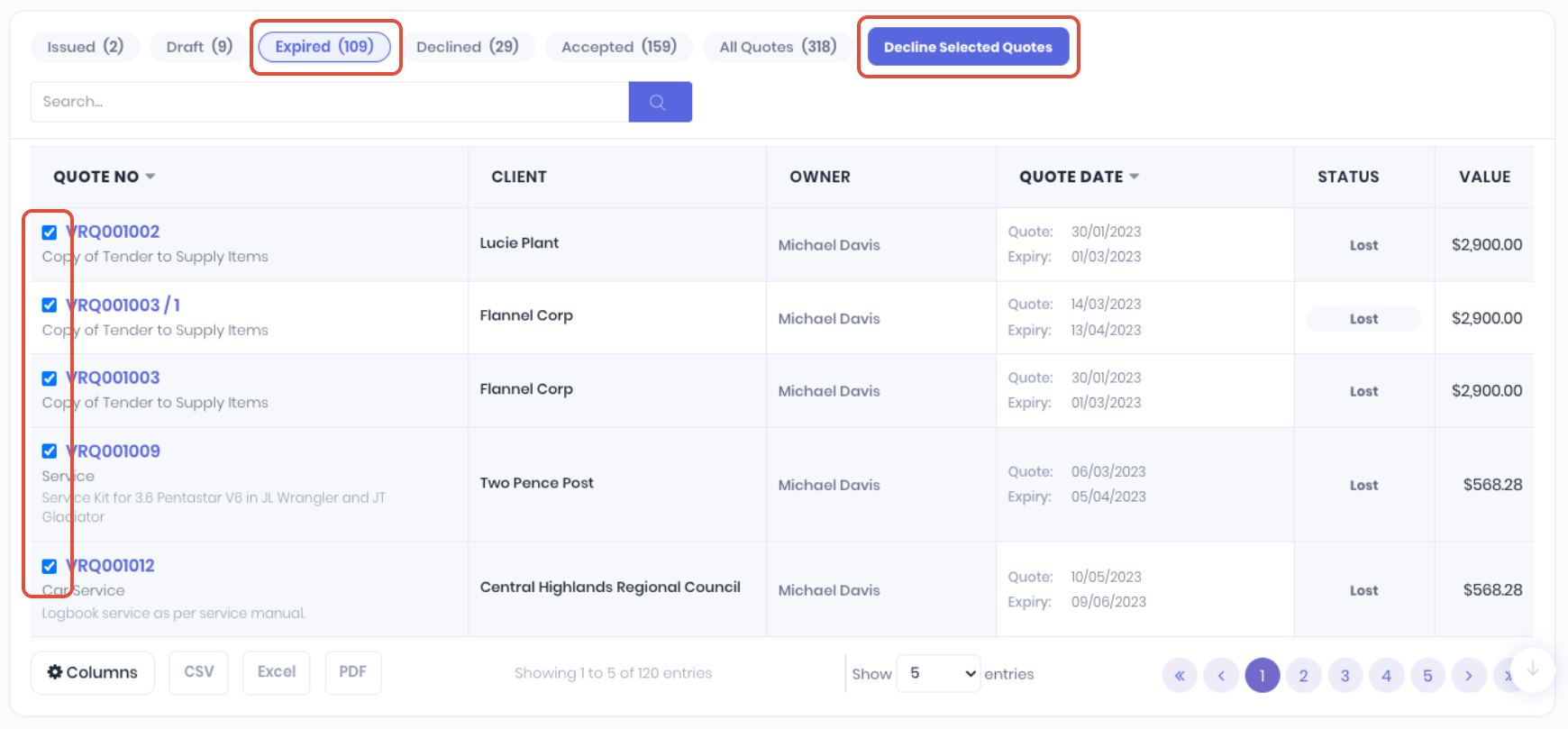
When the Expired tab is selected, you can use the checkboxes to select multiple or all expired quotes in bulk and then click Decline Selected Quotes.
You can customise the quote list by clicking on the Columns button in the footer to show or hide columns as required. Select the required columns and click Done to apply. Reset Columns resets the client list back to defaults. Clicking off the popup menu will cancel.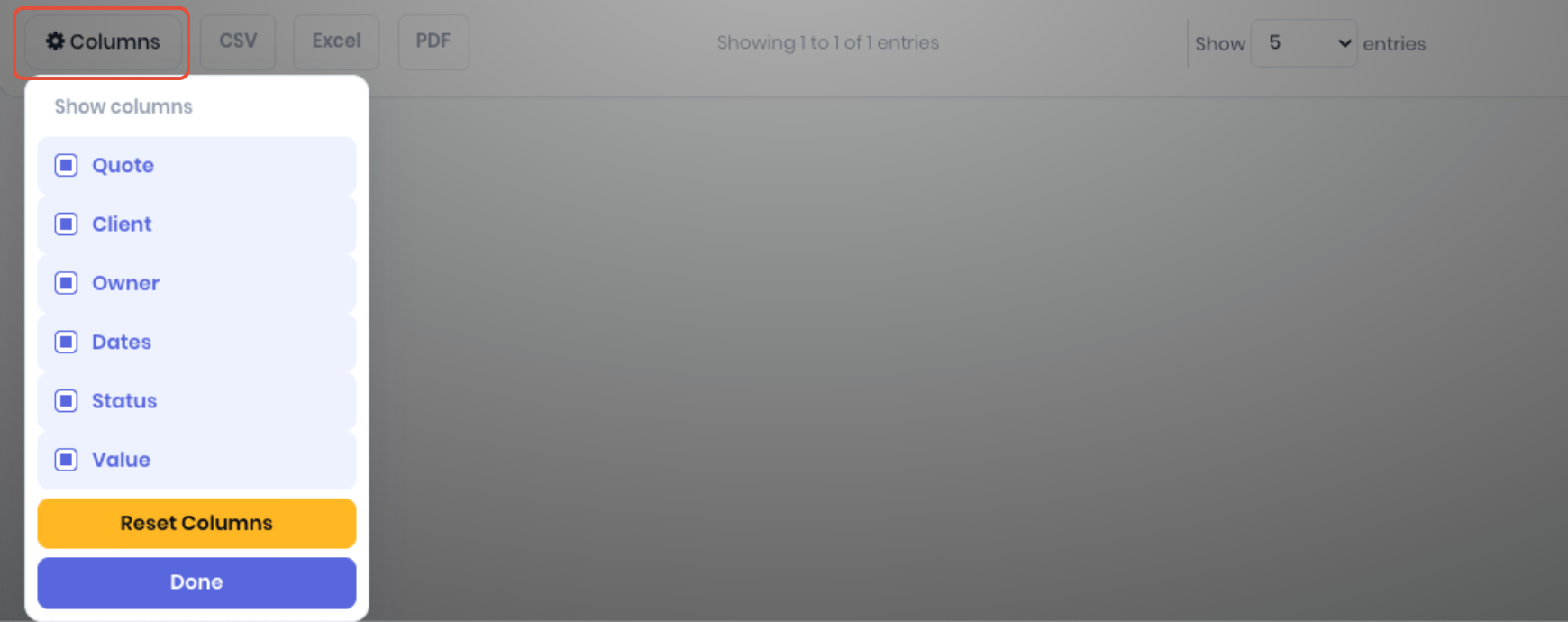
You can open the quote details by clicking the Quote No from the quotes dashboard. The quote details page displays the quote information, line items and forecast financials in the overview tab. You can record notes, upload files and review the email history.
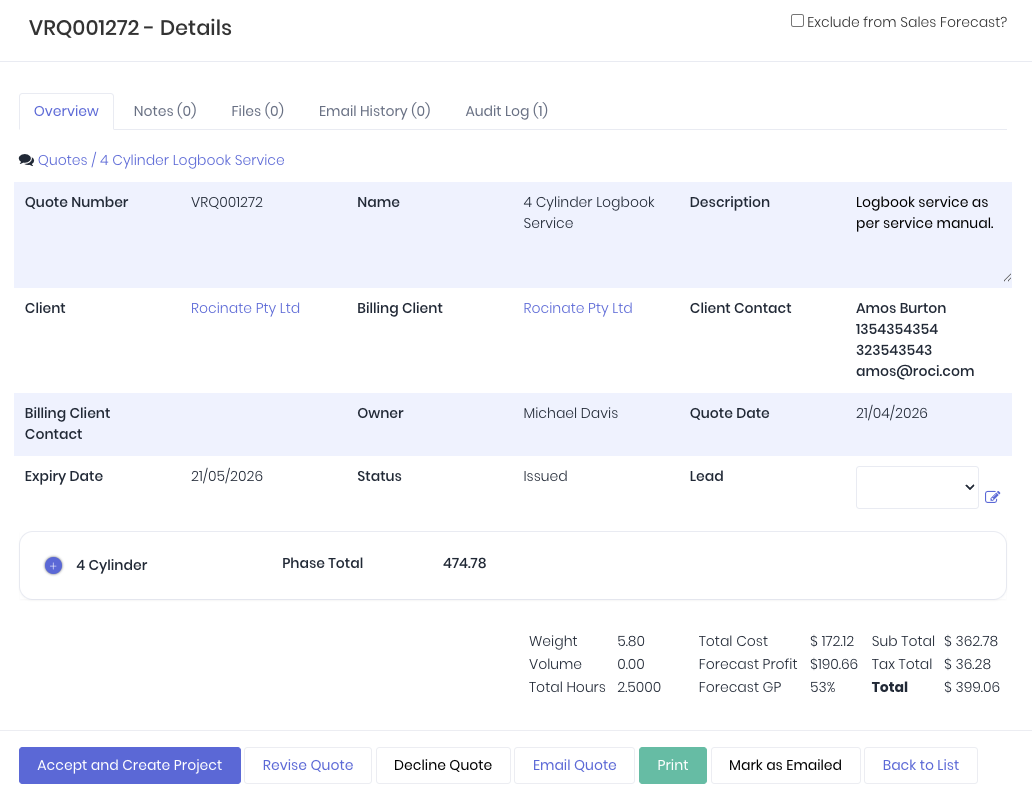
Quote functions available depending on quote status are:
Quote Details
- Exclude from Sales Forecast? - Remove the quote value from lead and quote sales reporting.
- Quote Details Tabs:
- Overview - Quote details, line items (arranged by phase), profitability, volume and weight forecasts.
- Notes - Add internal notes related to the quote
- Files - Upload files related to the quote
- Email History - Displays a log of how and when the quote was emailed from WorkGuru
- Audit Log - Track changes to the quote by user and date.
- Lead - Clicking edit button next to the Lead field displays a drop-down menu where you can assign or change which lead that the quote is linked to.
Quote Footer
- Issue Quote - Mark quote as issued. Has to be revised if needed to be edited.
- Accept and Create Project - Mark the quote as accepted and create a project (or stock sale if no task on quote)
- Edit Quote - Edit the quote details and line items (Draft quote only)
- Revise Quote - Mark the quote as revised to edit based on client feedback.
- Decline Quote - Decline the quote as the client is not going forward with it. Can also be used to cancel a quote.
- Email Quote - Email the quote as a pdf or docx to the client.
- Print - Print/download the quote to your device as a pdf or docx formatted file.
- Mark as Emailed - If sending to the client externally, display the quote as sent in WorkGuru.
- Back to List - Back to the quotes dashboard.
- Create and Project Template from Quote - Create a project template from the quote's line items to be used again on subsequent quotes and projects.
- Copy Quote - Copy the quote lines inclusive of details (including client etc) to create a new quote.
Was this article helpful?
That’s Great!
Thank you for your feedback
Sorry! We couldn't be helpful
Thank you for your feedback
Feedback sent
We appreciate your effort and will try to fix the article